 CLOVERT
The complete guide to Clovert.
Every screen in Clovert — for HR administrators, managers, and employees. What each one does, when to use it, and the exact steps for each task. Work through your role top to bottom, or jump to the screen you need from the menu.
Dashboard
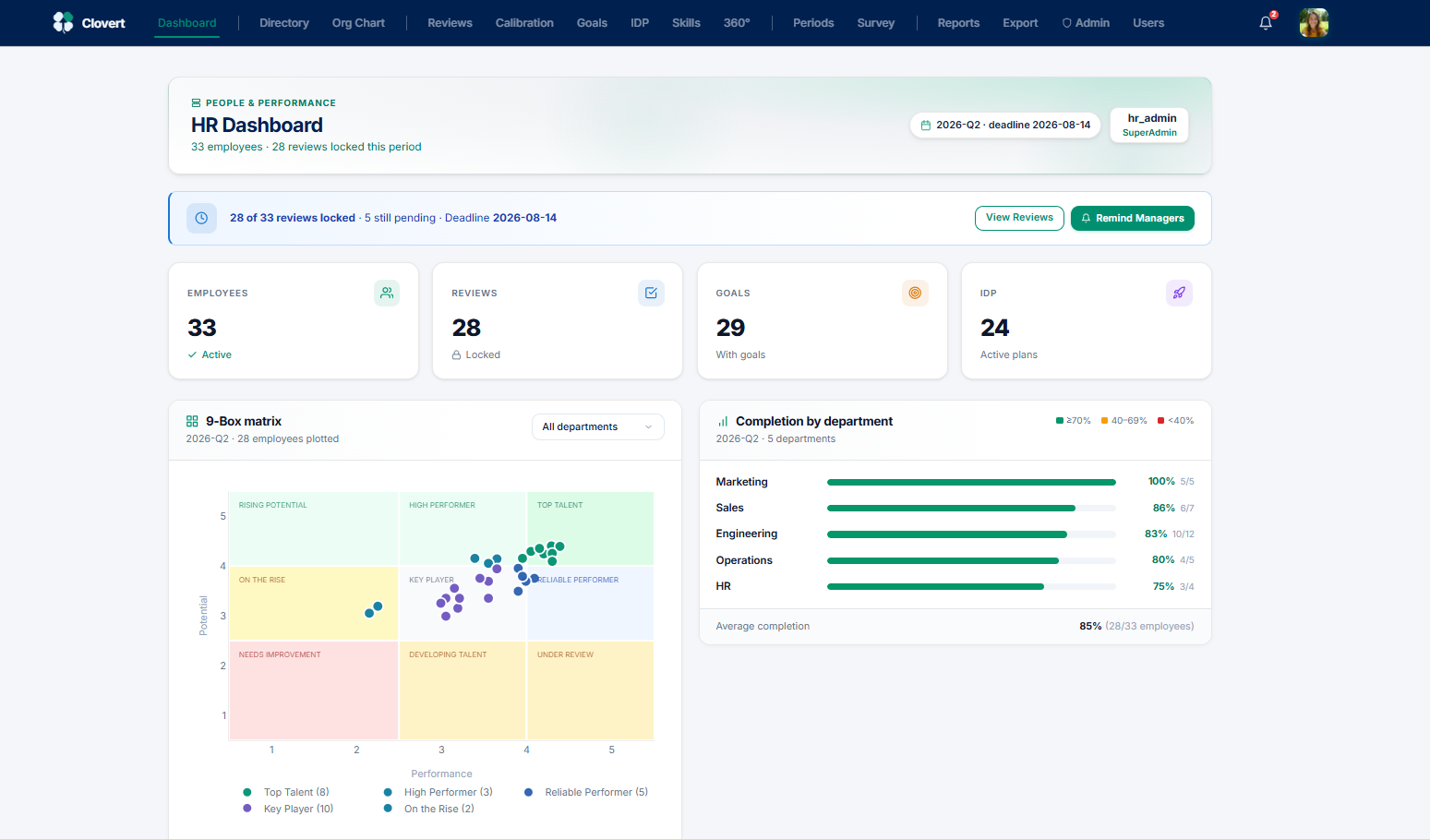
Your home screen. The HR Dashboard answers one question at a glance: how is this review cycle going, and where do I need to push?
The top banner shows the active period, its deadline, and how many reviews are locked versus still pending. The four stat cards summarise the company — active employees, locked reviews, goals set, and active development plans. Below, the live 9-Box matrix plots every reviewed employee, and the completion bars break down progress by department so you can see exactly who is behind.
What to do here
- Scan the banner to see how many reviews are still pending against the deadline.
- Use Remind Managers to send a nudge to anyone who hasn't submitted yet.
- Check Completion by department — green is on track (≥70%), amber needs attention (40–69%), red is behind (<40%).
- Click View Reviews to jump straight into the reviews list and act on what's outstanding.
Directory
The master list of everyone in your company. This is where you add people, set who manages whom, and keep employment details current.
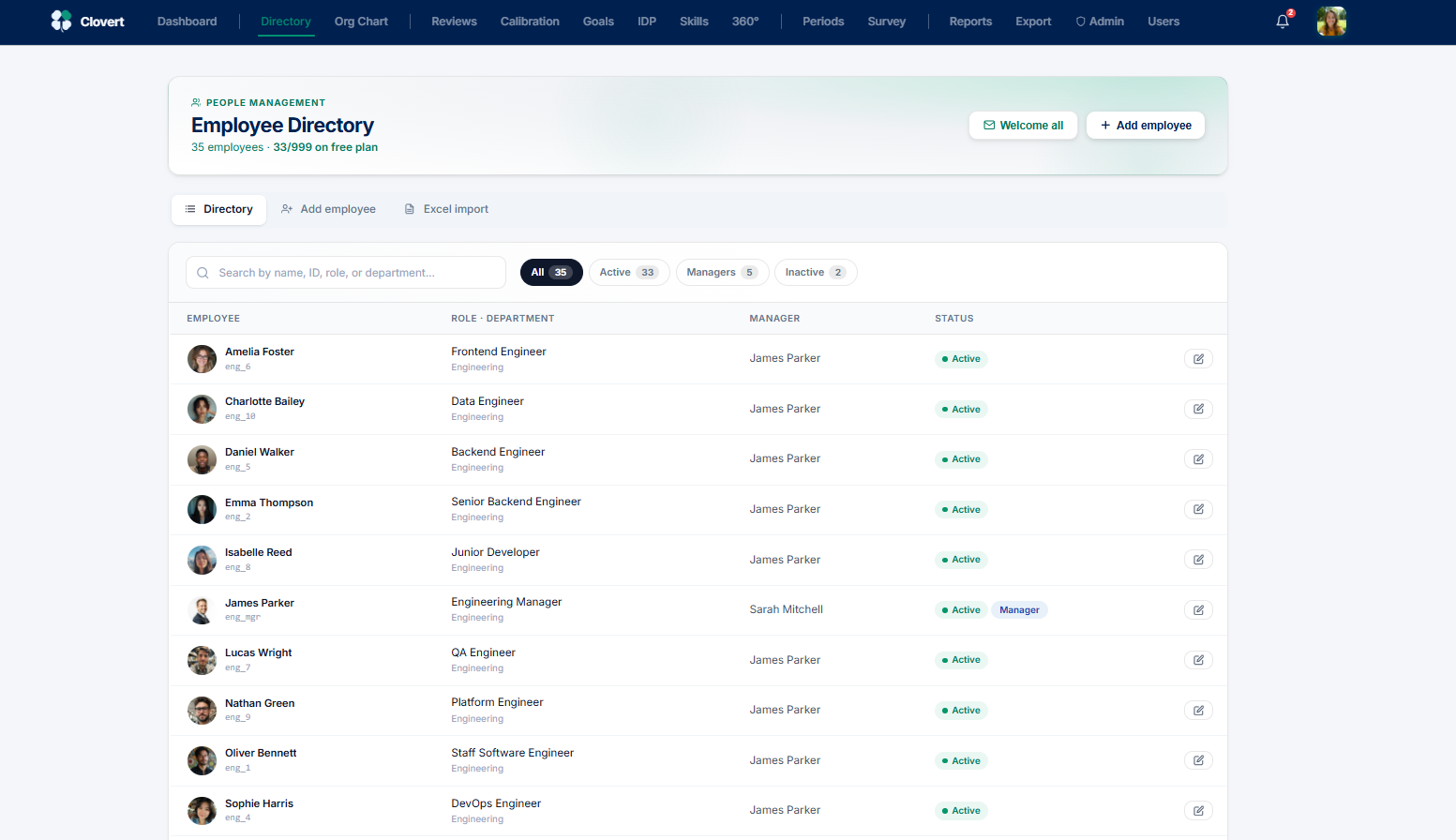
The header shows your headcount against your plan limit (for example, 33/999). The filter tabs let you jump between everyone, active staff, managers, and inactive records. Search works across name, employee ID, role, and department. Each row links to that person's full profile via the edit icon.
Adding people
You have two ways to add employees — one at a time, or in bulk from a spreadsheet.
- Click Add employee for a single person, and fill in name, role, department, and manager.
- Or switch to the Excel import tab to upload many at once.
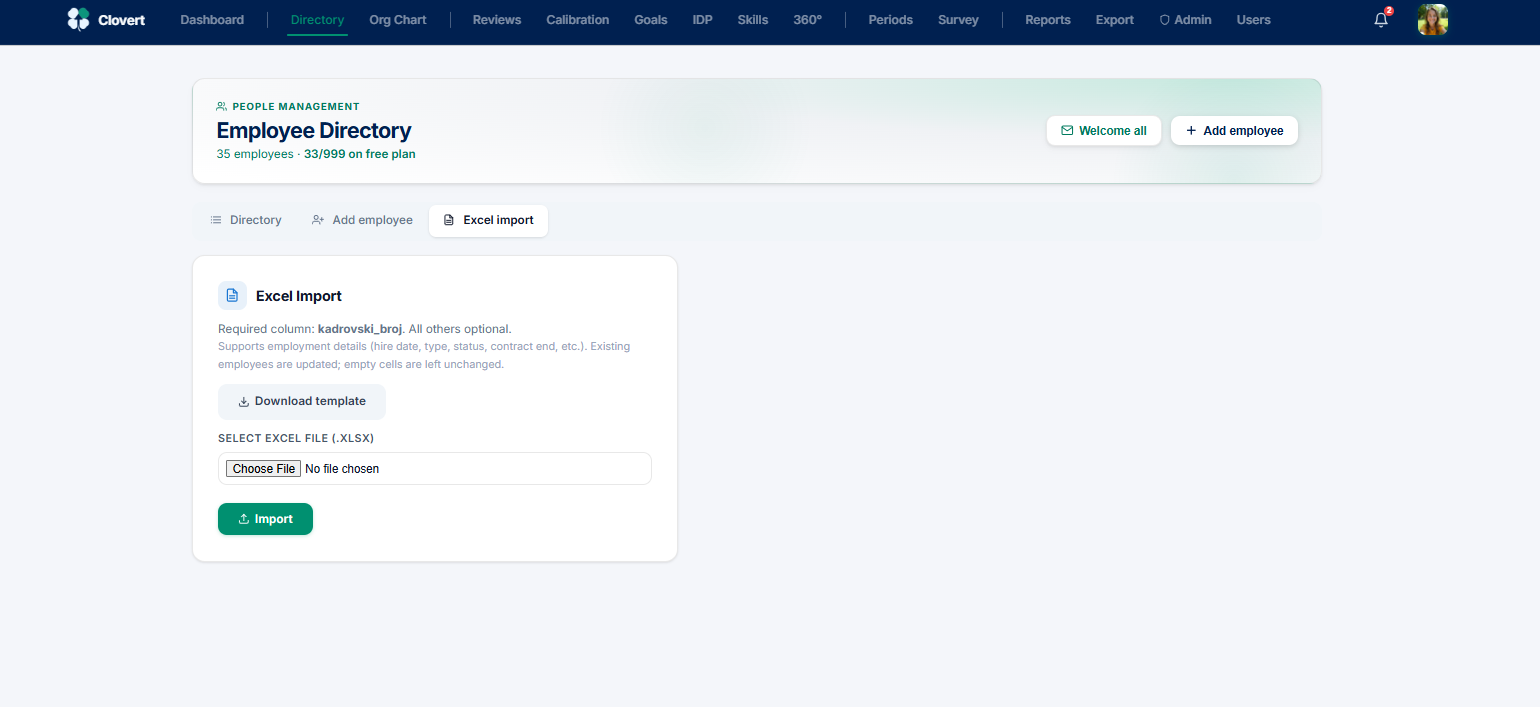
For the import, the only mandatory column is the employee identifier. All other fields — role, department, employment details, hire date — are optional. Existing employees are updated rather than duplicated, and empty cells are left untouched, so you can re-import safely to patch in new data.
- Click Download template to get a correctly-formatted spreadsheet.
- Fill in your people, keeping the employee ID column populated.
- Choose your
.xlsxfile and click Import.
Edit employee & GDPR tools
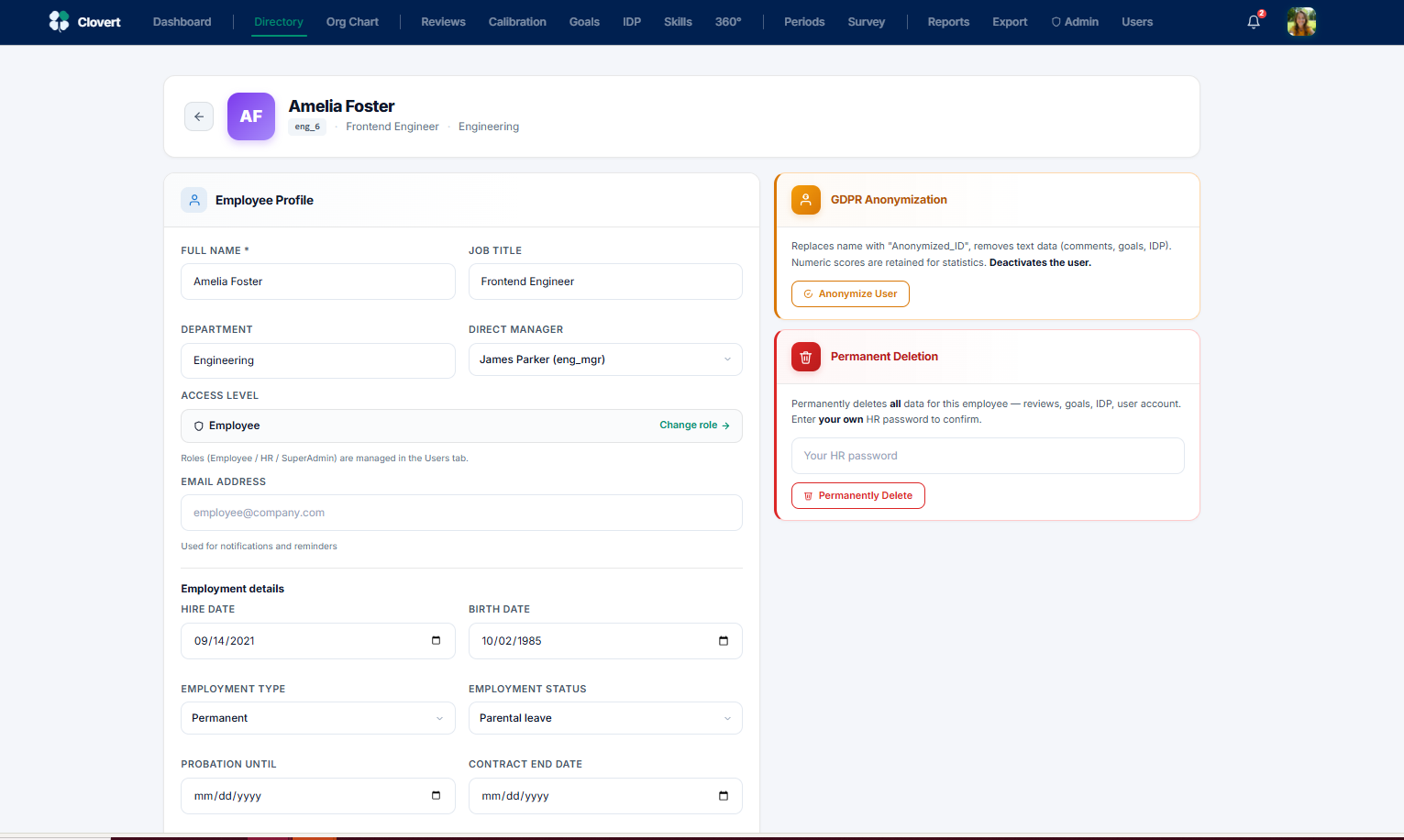
The full profile for one person — their details, employment record, and the two GDPR actions you may occasionally need: anonymisation and permanent deletion.
The left panel holds the editable profile: name, job title, department, direct manager, email, and employment details like hire date, type, status, probation, and contract end. The Access level field shows the person's role (Employee, HR, or SuperAdmin) — to change it, follow the Change role → link, which takes you to the Users tab where roles are managed.
GDPR: anonymisation
Anonymisation is the safe choice for a right-to-erasure request. It replaces the person's name with an anonymised ID, removes free-text data (comments, goals, IDP), and deactivates the user — but keeps the numeric scores so your historical analytics and aggregate statistics stay intact.
GDPR: permanent deletion
Permanent deletion removes all data for the employee — reviews, goals, IDP, and the user account itself. It's irreversible, so Clovert requires you to type your own HR password to confirm.
Org Chart
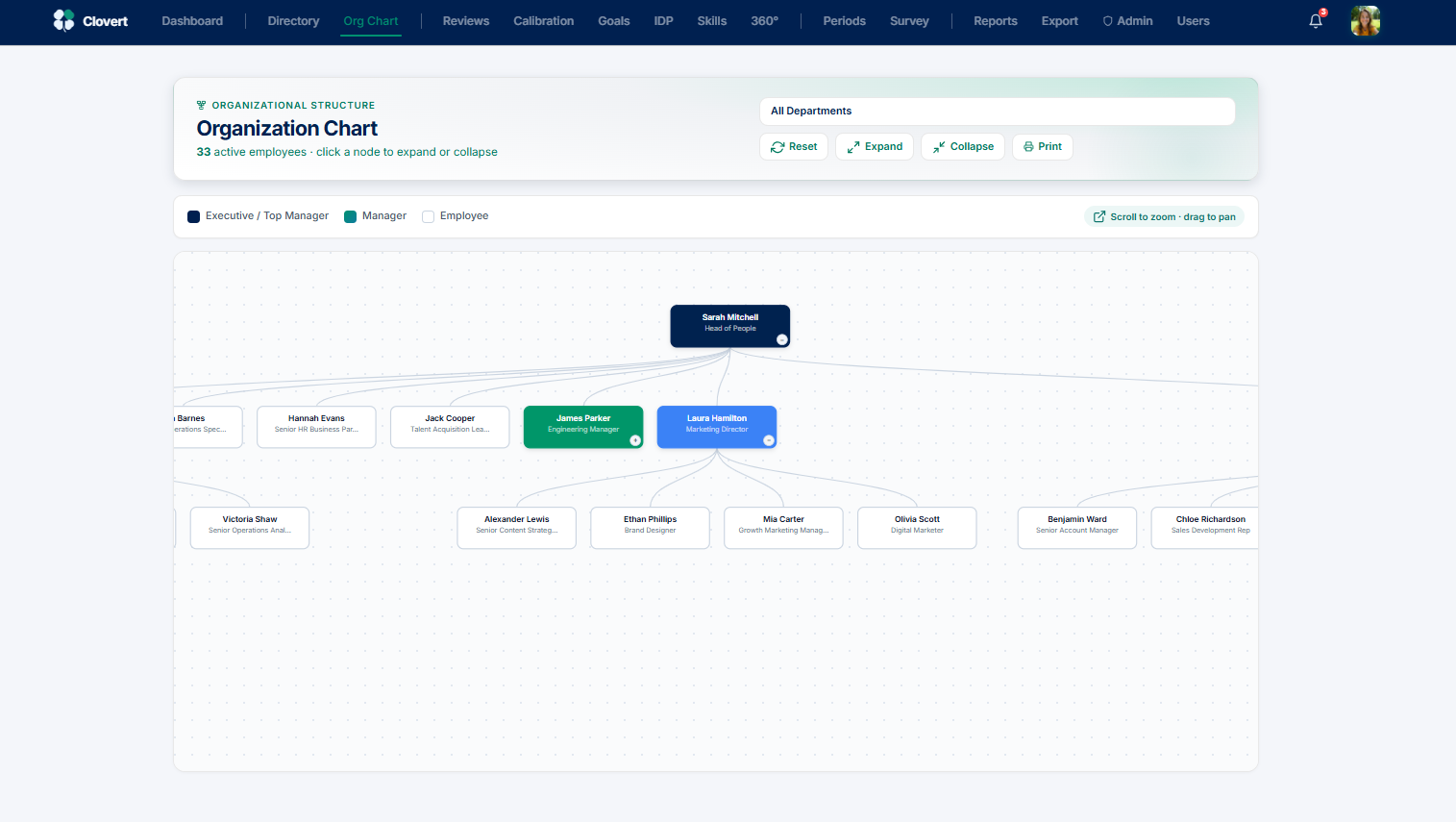
A visual map of your reporting structure, built automatically from the manager relationships in the Directory.
Each node is a person, colour-coded by level: executive/top manager, manager, and employee. Click any node to expand or collapse their branch. You can scroll to zoom, drag to pan, filter by department, and print the chart for offline use.
Users & roles
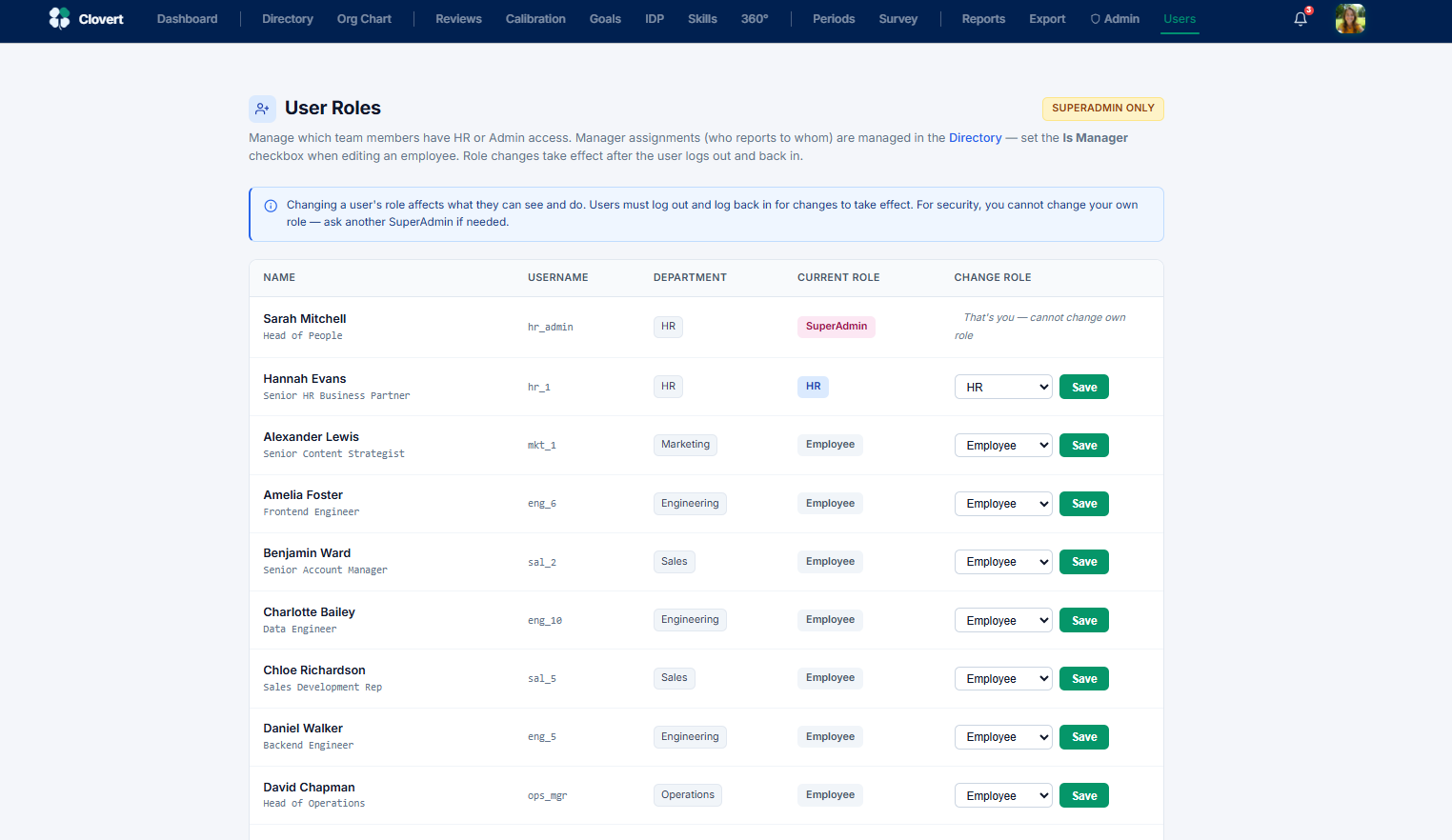
Where access roles are assigned. This screen controls who can act as HR or SuperAdmin — it's visible to SuperAdmins only.
Clovert has three access roles: Employee (the default — self-review, goals, IDP), HR (runs cycles, calibrates, sees everything), and SuperAdmin (HR plus user management and recovery tools). Each row shows the person's current role and a dropdown to change it.
- Find the person whose access you want to change.
- Pick the new role from the dropdown in the Change role column.
- Click Save. The change takes effect the next time they log out and back in.
Periods
Review cycles in Clovert are organised by period — typically a quarter. This is where you create periods, set deadlines, and activate the one everyone works in.
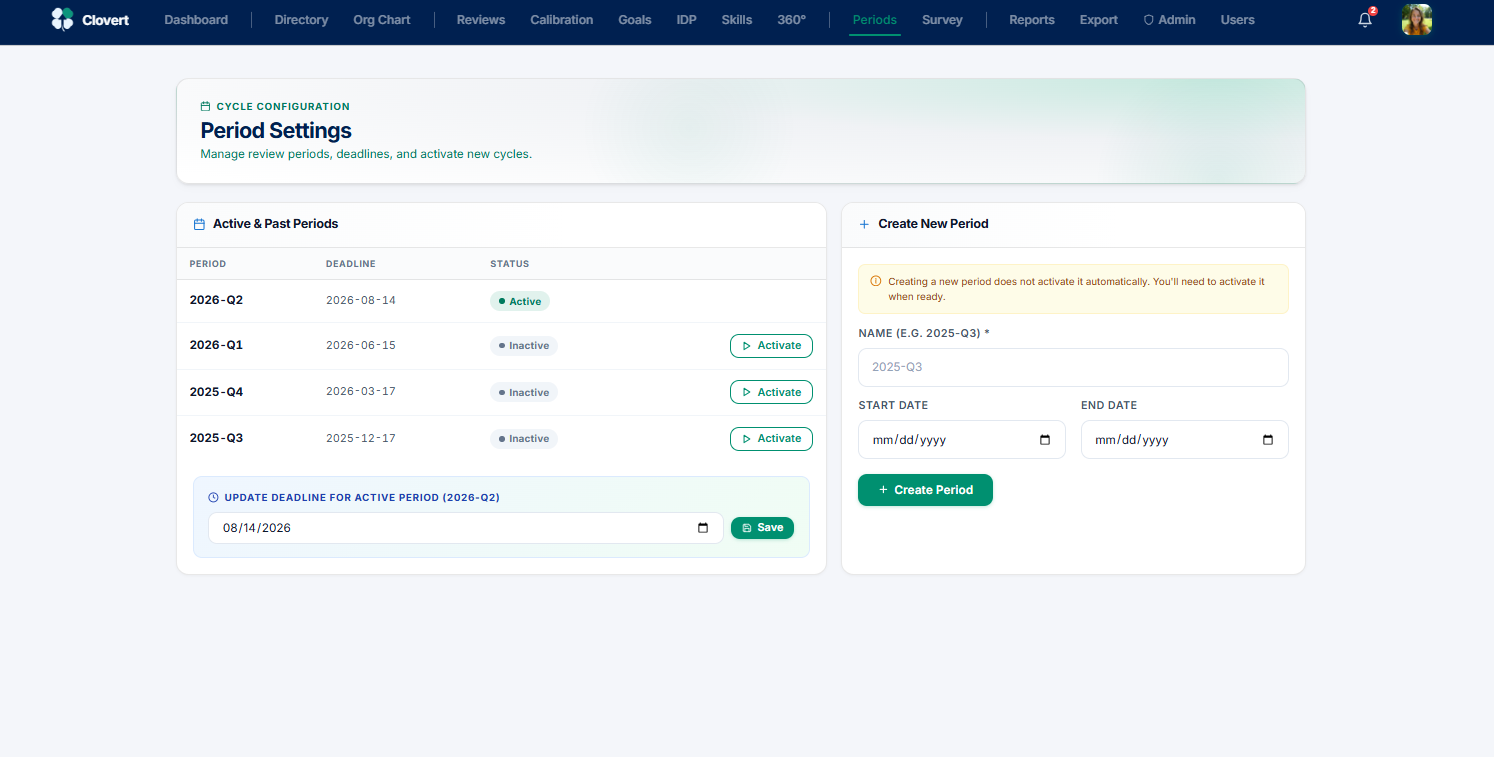
The left panel lists active and past periods with their deadlines and status. Only one period is active at a time — that's the cycle employees and managers see. The right panel creates a new period.
Creating a new cycle
- In Create New Period, name it (for example
2026-Q3) and set start and end dates. - Click Create Period.
- Find it in the list and click Activate when you're ready to open it.
To change the deadline of the running cycle, use Update deadline for active period at the bottom of the left panel and click Save.
Survey Designer
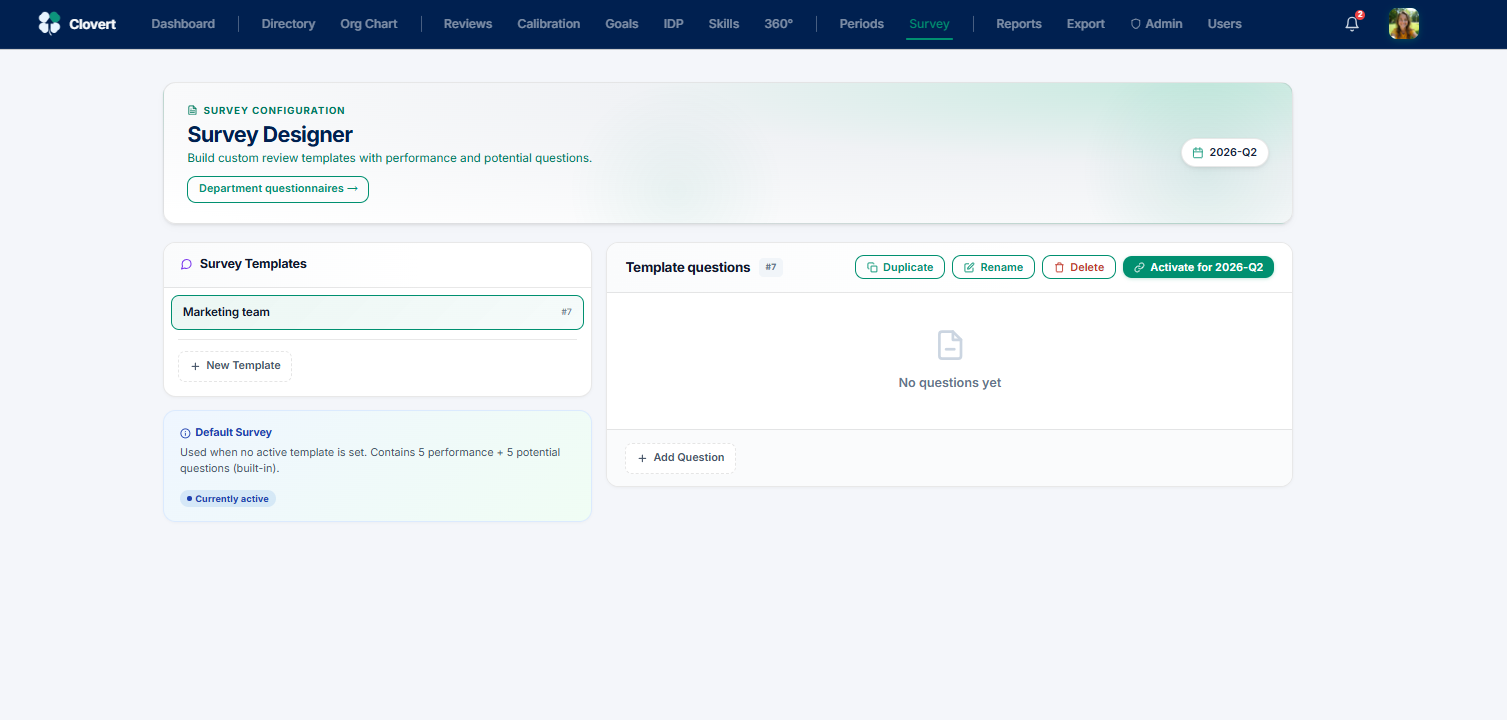
Build the questions your managers and employees answer during a review. If you don't build anything, Clovert uses a sensible default of five performance and five potential questions.
The left panel lists your templates; the right panel edits the questions inside the selected one. The Default Survey card shows what's used when no custom template is active — five performance plus five potential questions, built in.
Building a template
- Click New Template and give it a name.
- Use Add Question to add performance and potential questions.
- When ready, click Activate for [period] to make it the live questionnaire.
You can also Duplicate a template to start from an existing one, Rename it, or Delete it. To edit an existing question's wording, delete it and add the corrected version.
Department questionnaires
One of Clovert's differentiators: different departments can answer different questions. The shop floor and the office don't need the same review — so they don't have to share one.
Here you assign a template (built in the Survey Designer) to a specific department. Any department without an assignment falls back to the active default, so this is entirely optional — it only adds complexity where you want it.
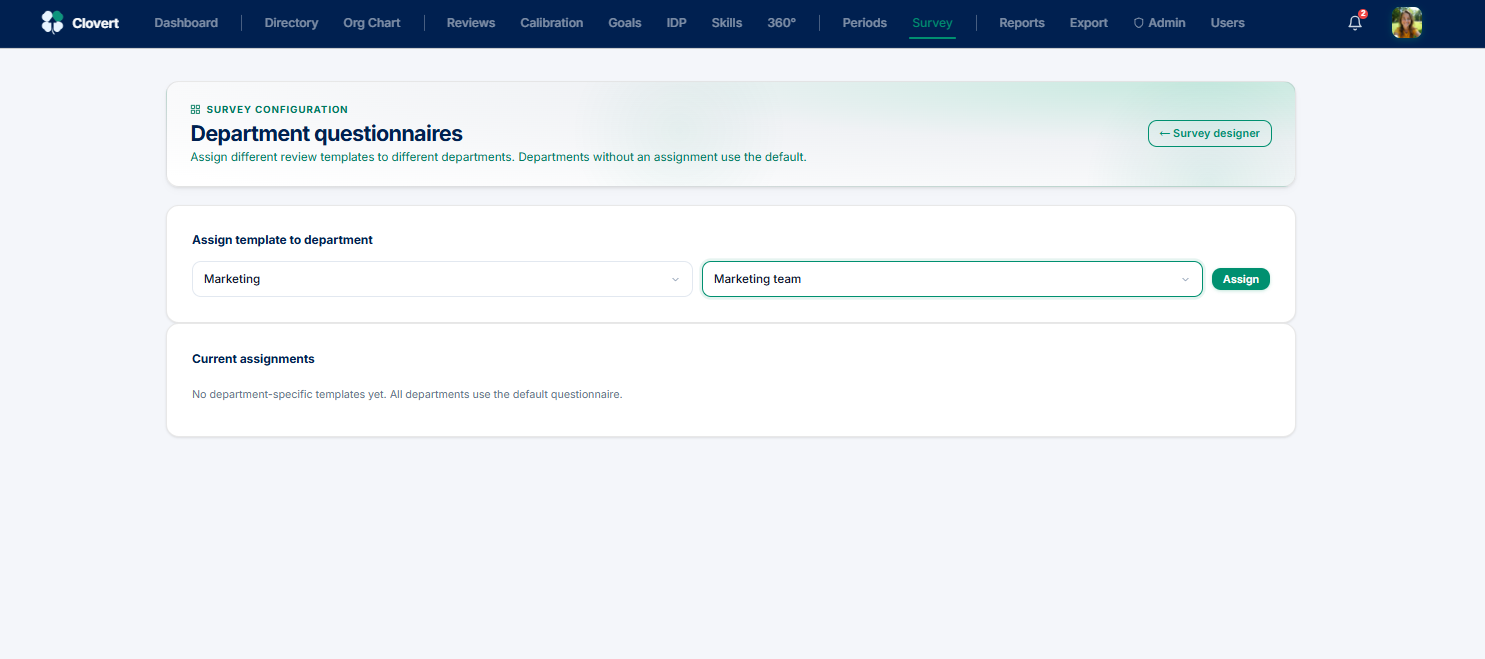
- Pick a department from the first dropdown.
- Pick the template to use for it from the second.
- Click Assign. The assignment appears under Current assignments.
Reviews
The full list of every evaluation in the cycle — who's submitted, who's still in draft, and the scores so far. This is your control room during an active period.
The stat cards summarise the cycle: total evaluations in scope, how many are submitted, how many are draft or missing, and the average performance and potential. The progress bar shows the locked percentage. The table lists everyone grouped by department, with performance, potential, the self-vs-manager gaps, derived category, status, and a link to each person's profile.
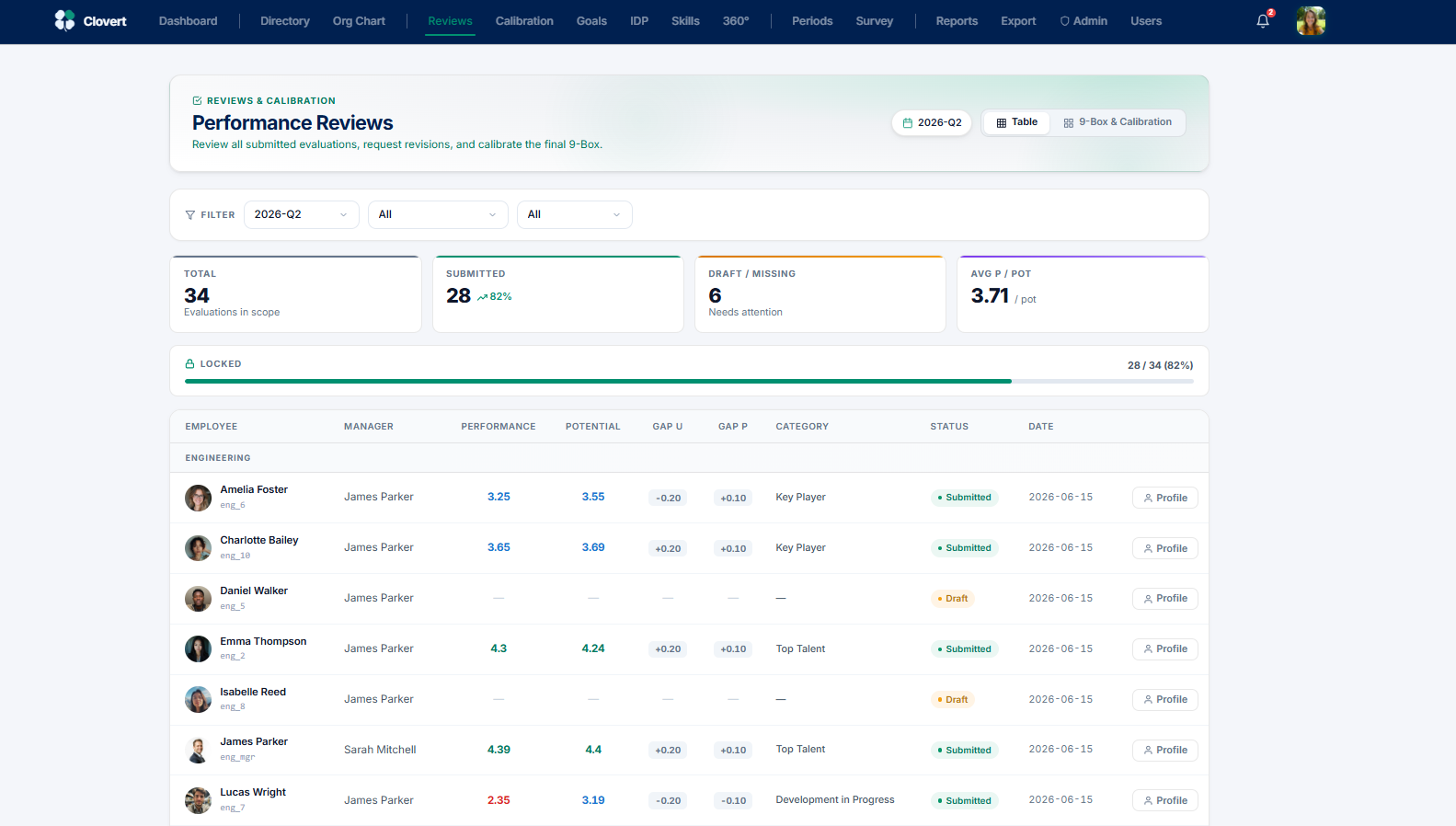
Use the period, department, and status filters at the top to narrow the list — for example, show only Draft reviews to see exactly what's outstanding.
The 9-Box & Calibration view
Toggle from Table to 9-Box & Calibration to see the same people plotted on the matrix. This is the bridge into calibration — covered next.
Calibration
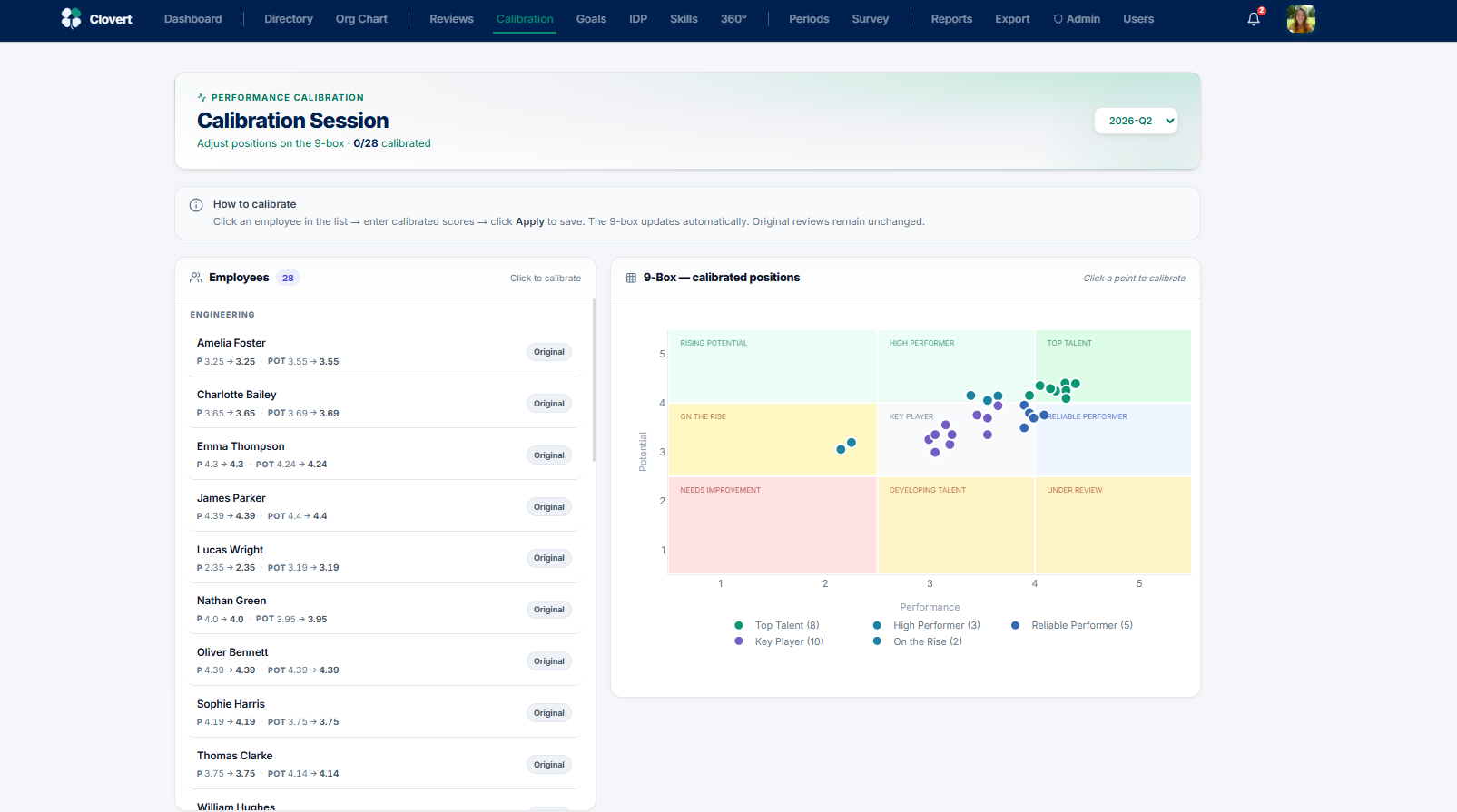
The session where HR adjusts the final 9-Box. Managers rate their own people; calibration is where you smooth out differences in how strictly each manager rates, so the company-wide picture is fair.
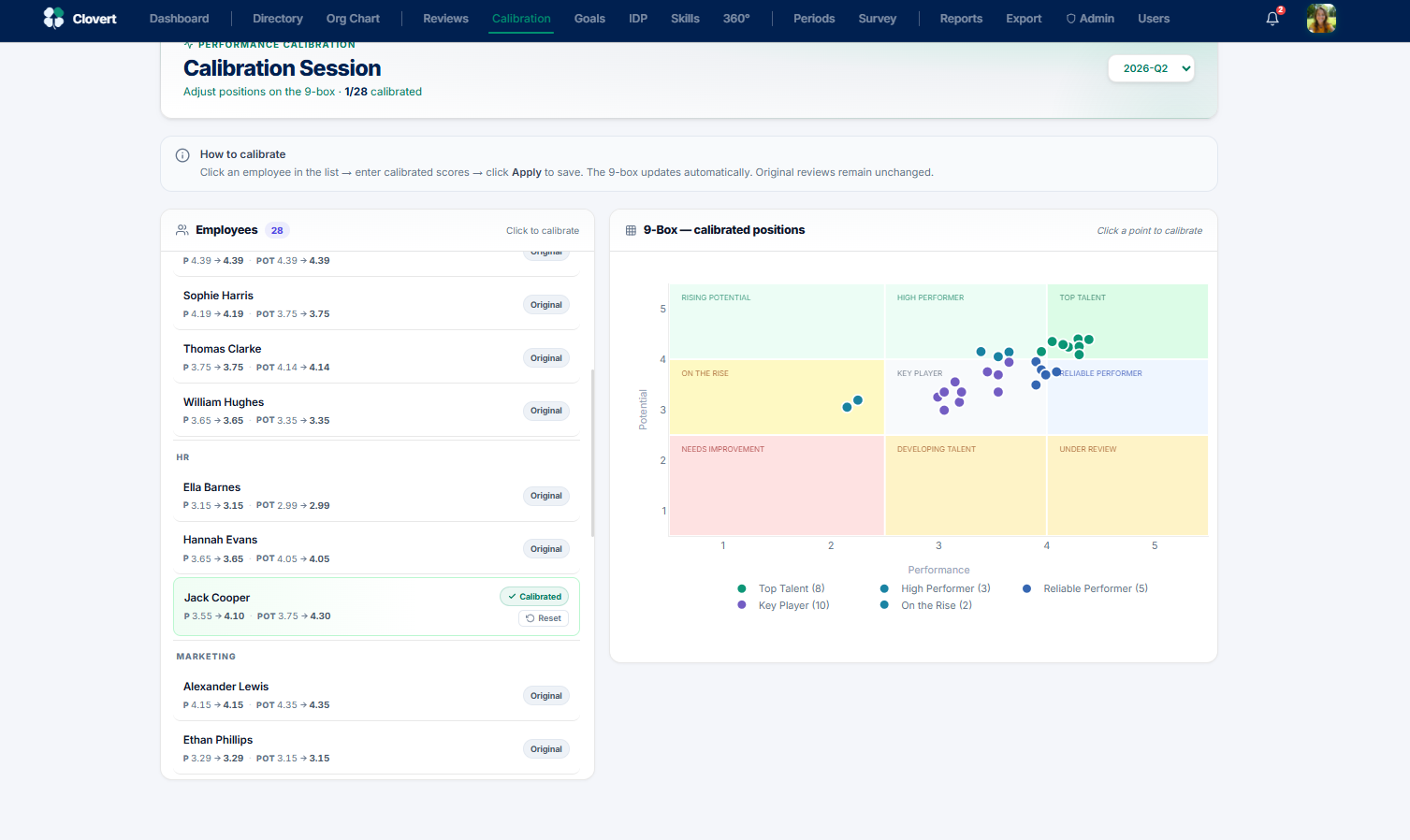
The left panel lists every submitted employee grouped by department, each showing their original scores and whether they've been calibrated yet. The right panel is the live 9-Box. The counter at the top (1/28 calibrated) tracks your progress.
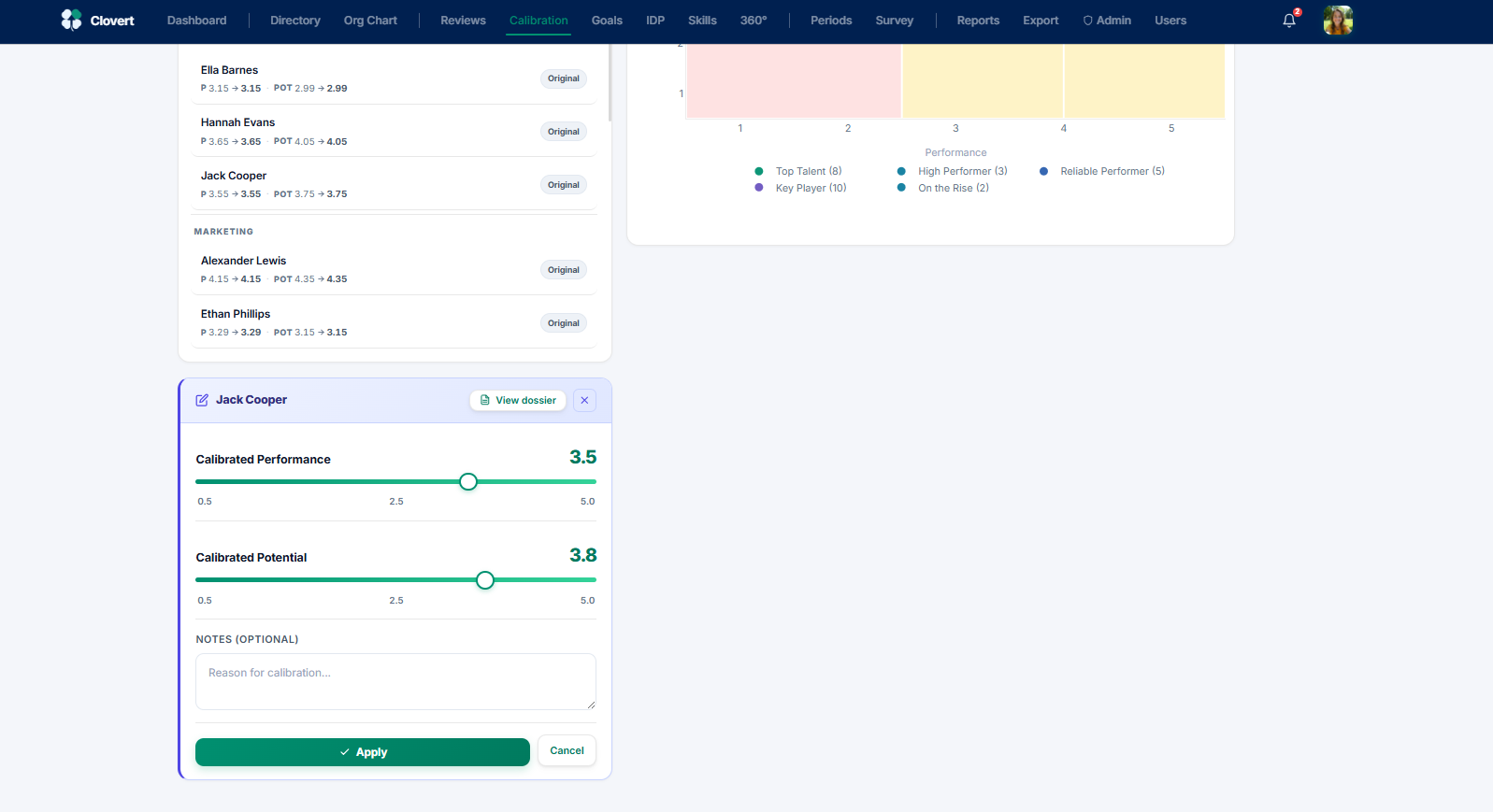
Calibrating someone
- Click an employee in the list to open the editor.
- Drag the Calibrated Performance and Calibrated Potential sliders to their adjusted scores.
- Add a note explaining the change (recommended — it's your audit trail).
- Click Apply. The 9-Box updates and the row is marked Calibrated.
Talent Dossier
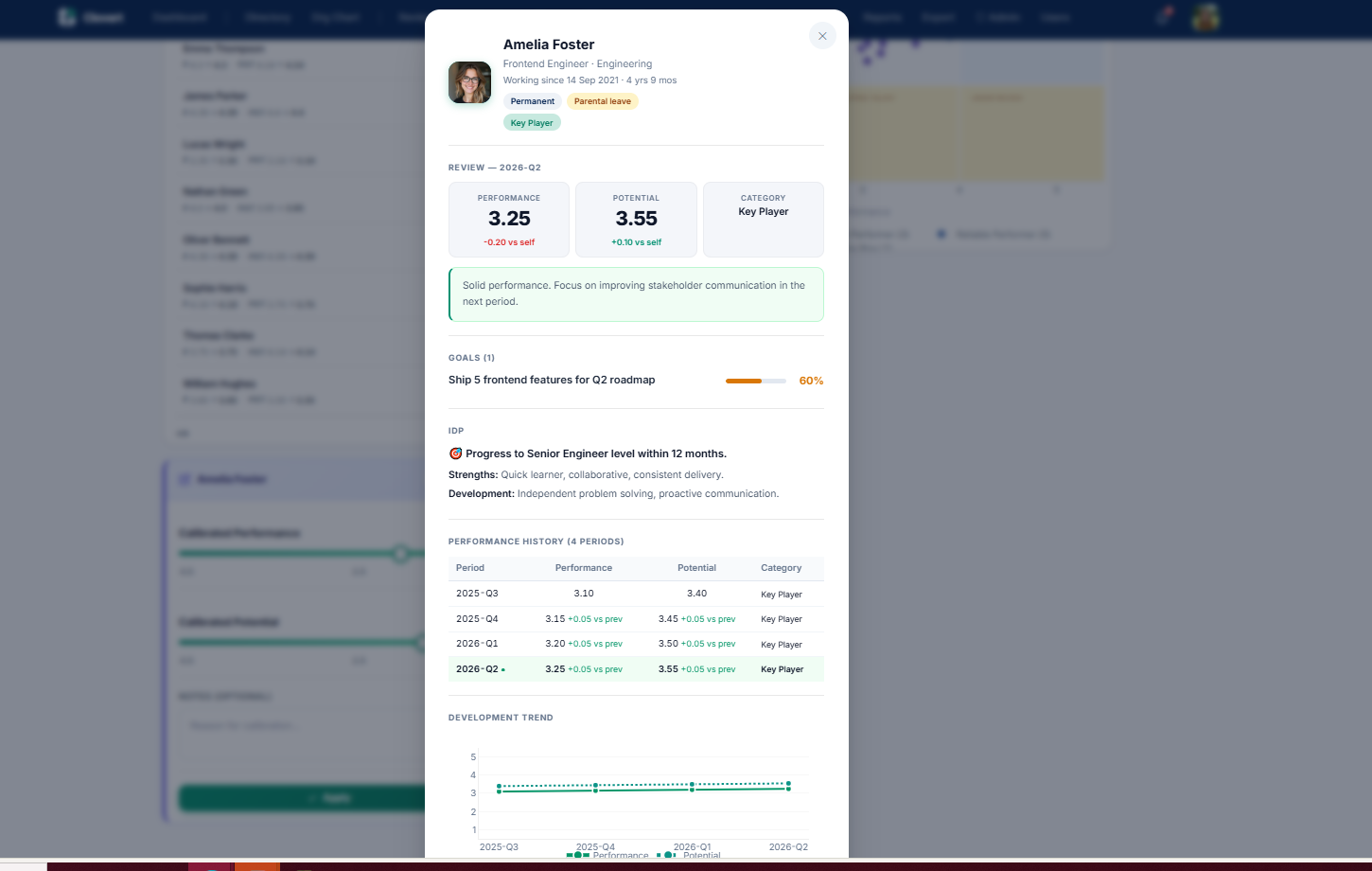
A one-screen summary of a single employee, opened from the Profile button anywhere their name appears. Everything you need for a calibration debate or a 1:1, in one place.
The dossier pulls together the current review (performance, potential, category, and the self-vs-manager delta), their goals with progress, their development plan, recognition received this period, and a performance history across periods with a development trend chart.
Goals
Company and employee goals in one place. Clovert uses cascading goals with measurable KPIs — set direction at the org level, and watch individual goals align to it.
Toggle between Org Goals (company-level direction) and Employee Goals (what individuals are working towards). The stat cards summarise total, active, completed, and overdue. The list groups goals by department, each with its owner, deadline, weight, and a live progress bar.
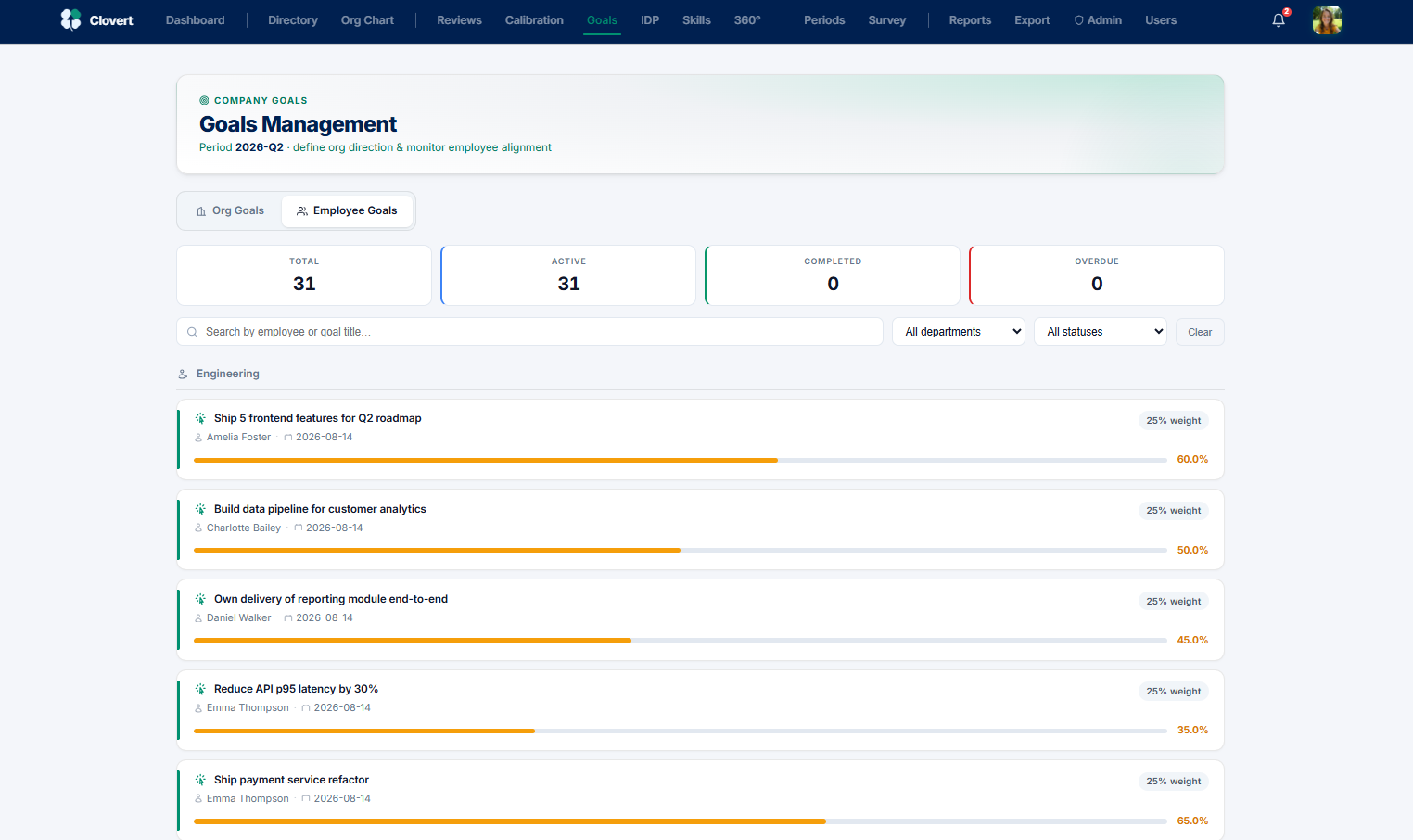
Search by employee or goal title, and filter by department or status to focus. Use this view to spot goals that are overdue or sitting at low progress before they become a problem at review time.
Development Plans (IDP)
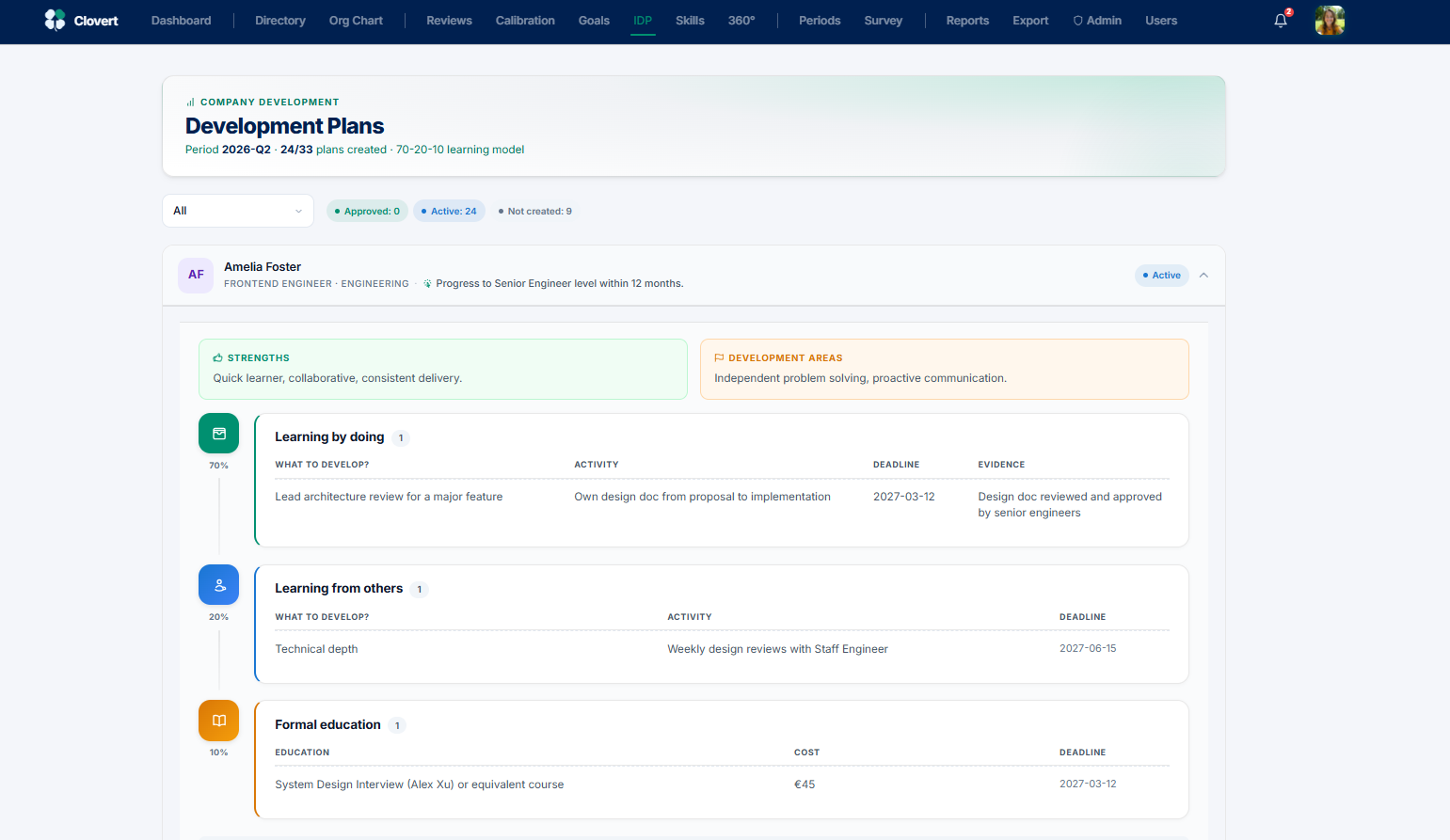
Individual Development Plans built on the 70-20-10 model — 70% learning on the job, 20% learning from others, 10% formal education. This view shows plan coverage across the whole company.
The header tracks how many plans exist (24/33 plans created). The status filter separates approved, active, and not-yet-created plans. Each employee's plan expands to show their career goal, strengths, development areas, and concrete actions split across the three 70-20-10 bands — each with what to develop, the activity, a deadline, and evidence of completion.
Skill Matrix
Who knows what — and where you're exposed if someone leaves. The Skill Matrix maps team capabilities on a 0–4 scale, turning tacit "we think Maria handles that" knowledge into something you can see and plan around.
Pick a department tab to see its people against its skills. Each cell is a level from 0 (none) to 4 (teaches others), colour-graded so strengths and gaps are obvious at a glance. The Knowledge risk panel flags skills held by too few people — your single points of failure.
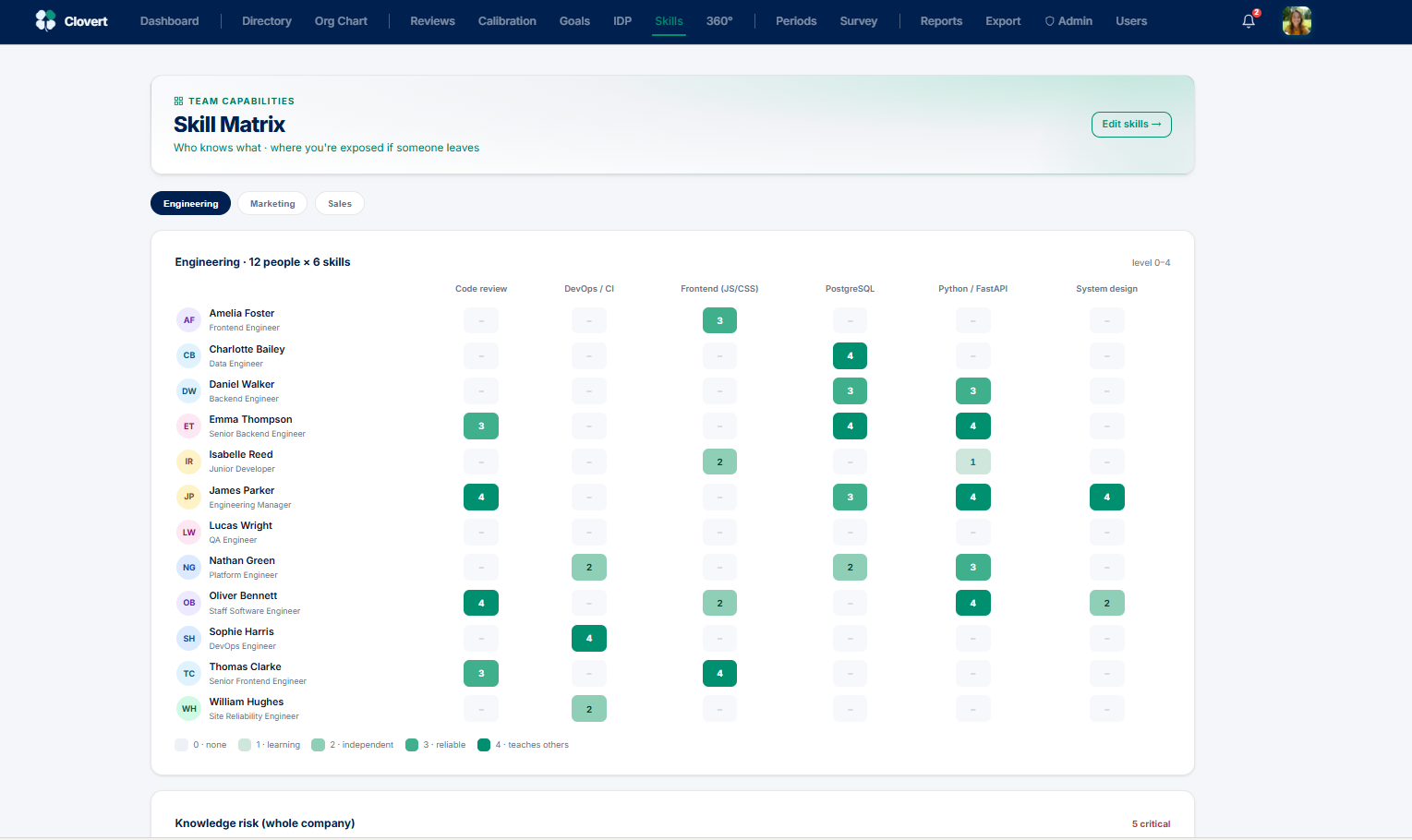
Managing the skill catalog
Click Edit skills to open the catalog, where you define which skills exist for each department. Skills are organised by department, and you can add or archive them as your needs change.
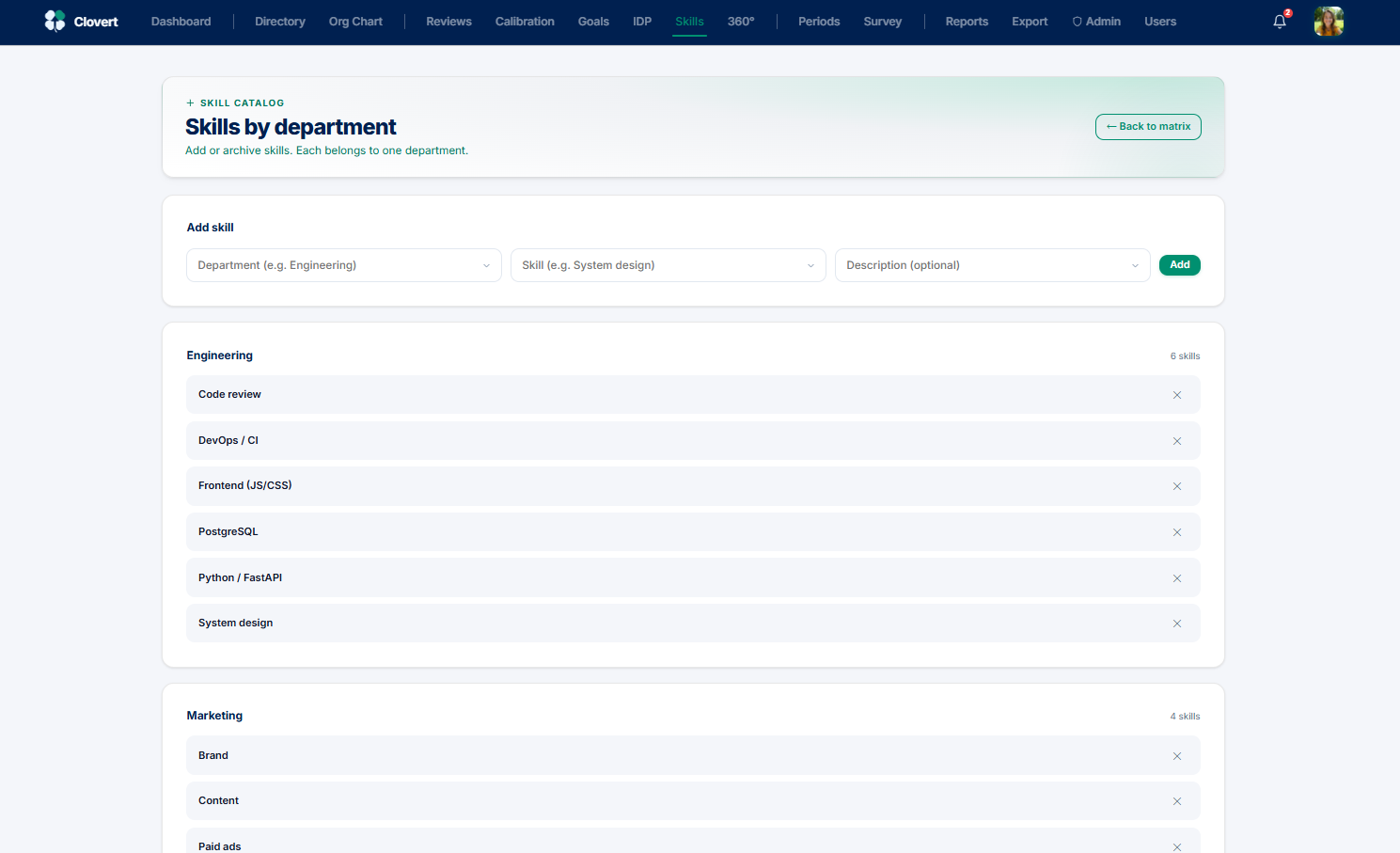
- In Add skill, choose the department, name the skill, and optionally describe it.
- Click Add. It appears under that department immediately.
- To remove one, click the × next to it (this archives it).
360° Feedback
Anonymous peer feedback on a set of competencies. As HR you administer the round — generating nominations and tracking completion — while individual responses stay anonymous.
The stat cards show total nominations, how many are submitted, how many are awaiting response, and overall completion. The Bulk generate nominations action creates Self, Manager, and Peer nominations for every team at once, skipping anyone who already has them so there are no duplicates. The right panel tracks status per employee.
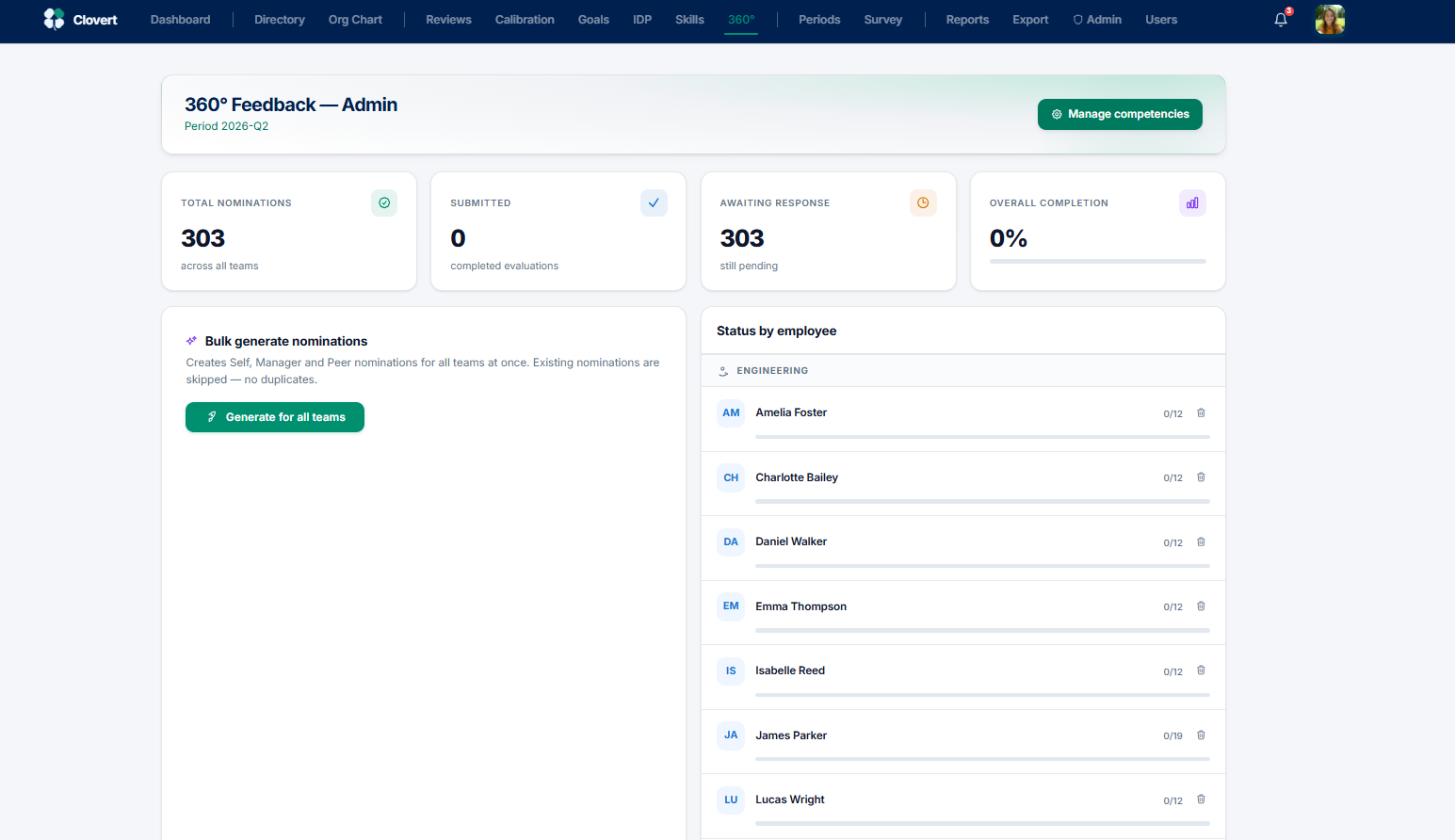
- Click Manage competencies to set the questions peers will answer.
- Click Generate for all teams to create nominations across the company.
- Watch completion roll in via the per-employee status list.
Reports
The analytical layer. Reports surfaces patterns you'd otherwise miss — managers who rate unusually high or low, and employees at risk of leaving — and turns them into action.
Attrition risk indicators
This is rule-based risk scoring — not a prediction, but a signal for proactive action. Clovert flags employees by risk factors: a performance drop, a low score, no development plan, a wide self-vs-manager gap, or no goals set. Each flagged person comes with the specific factors and quick +IDP and Review actions, so you can respond without leaving the screen.
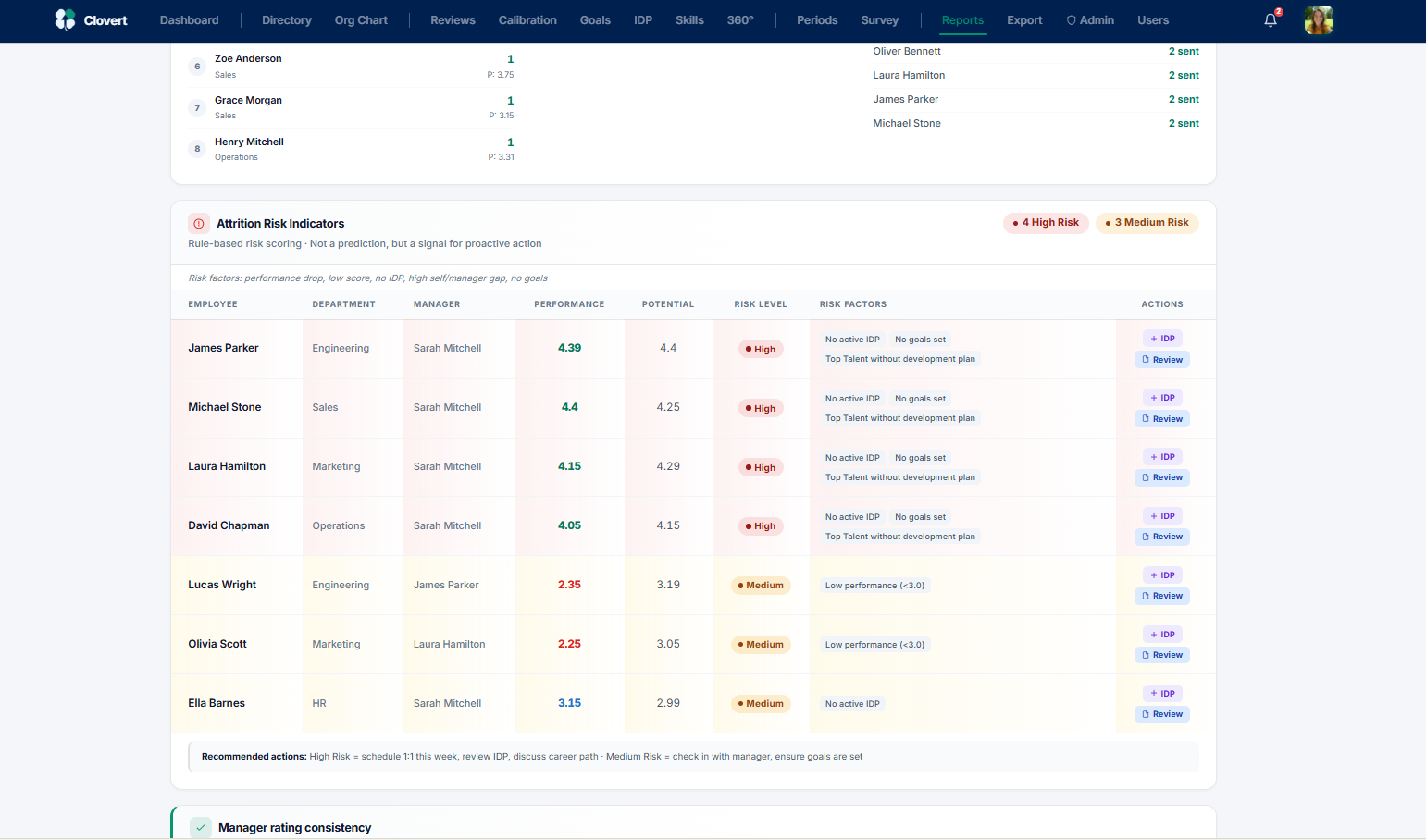
A common pattern: a top talent without a development plan shows as high risk. The recommended action — schedule a 1:1, review the IDP, discuss career path — is right there. Medium-risk cases (low performance, missing goals) prompt a manager check-in.
Executive Summary
The board-ready snapshot. One screen — and one downloadable PDF — that compares this period to the last and tells the leadership story without the operational detail.
The At a glance banner gives you the headline in a sentence: how many reviewed, the average performance movement, talent density, and how many people need attention. Below sit the headline metrics, performance by department, talent distribution, talent movement between quadrants, and your top performers — all comparing the selected period to the previous one.
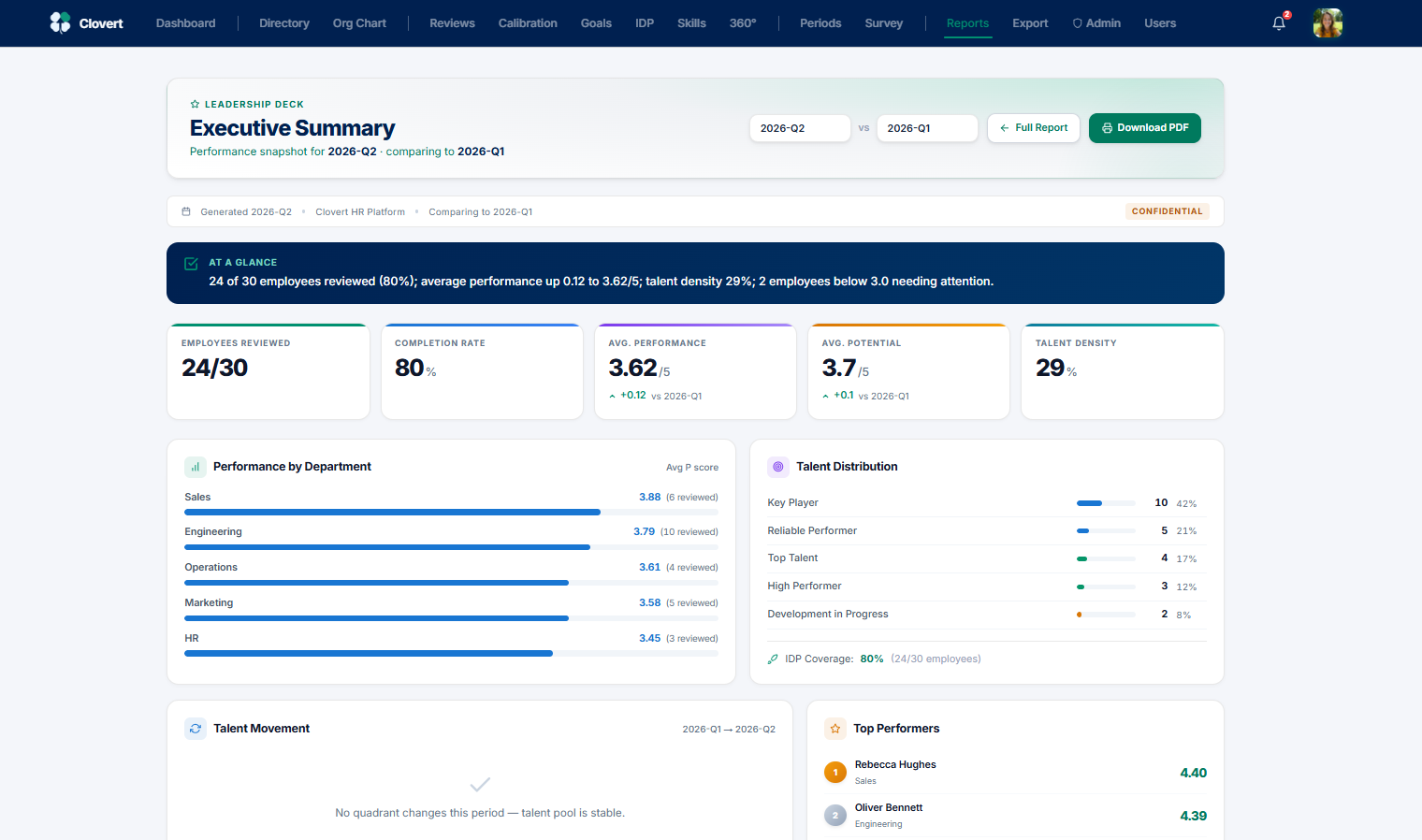
- Pick the two periods to compare in the selectors at the top.
- Review the at-a-glance summary and the breakdowns.
- Click Download PDF for the leadership debrief.
Export
Pull all company data for a period into a single Excel file — for offline analysis, archiving, or board reporting.
The export covers all employees, submitted performance reviews, goals and OKRs, and development plans. Only locked (submitted) reviews are included, so the file reflects finalised data rather than work in progress.
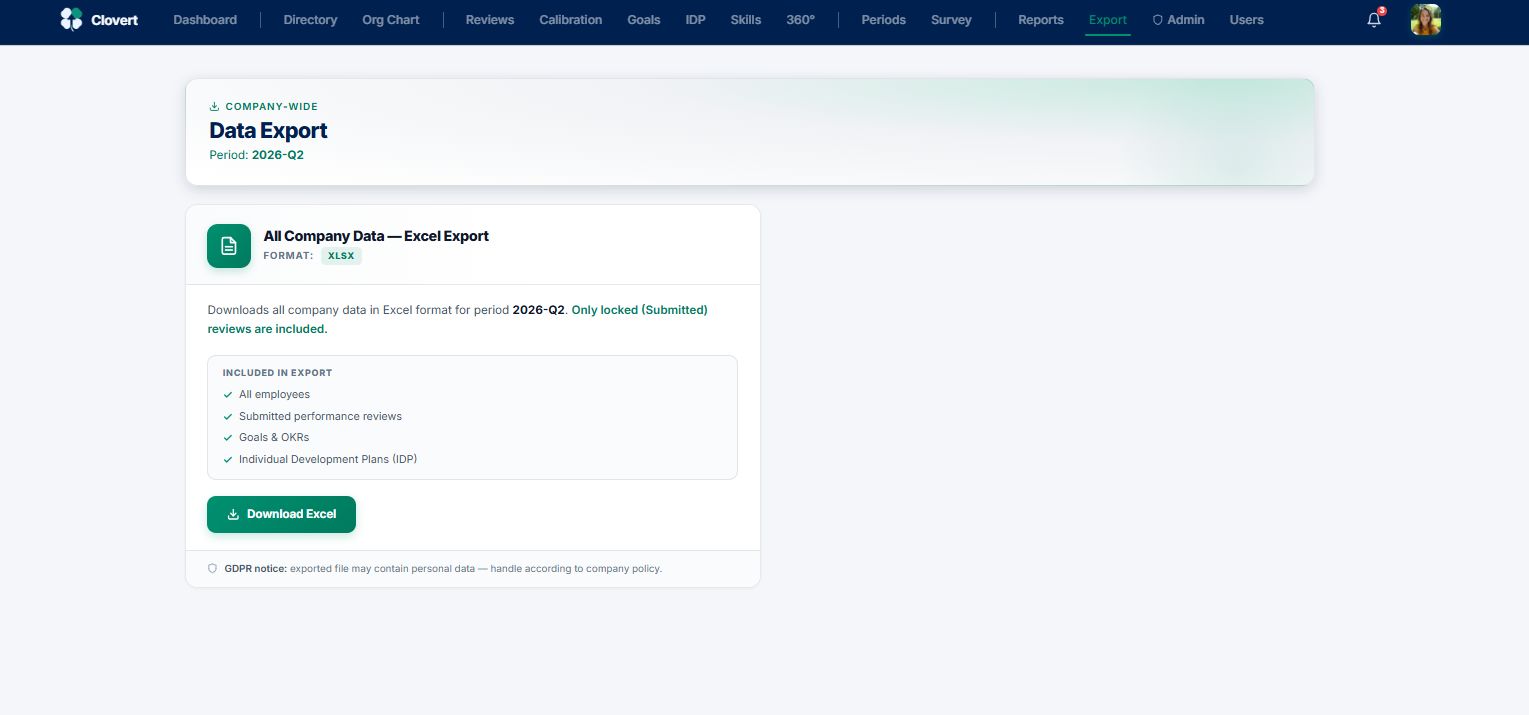
- Confirm the period shown is the one you want.
- Click Download Excel.
Signing in
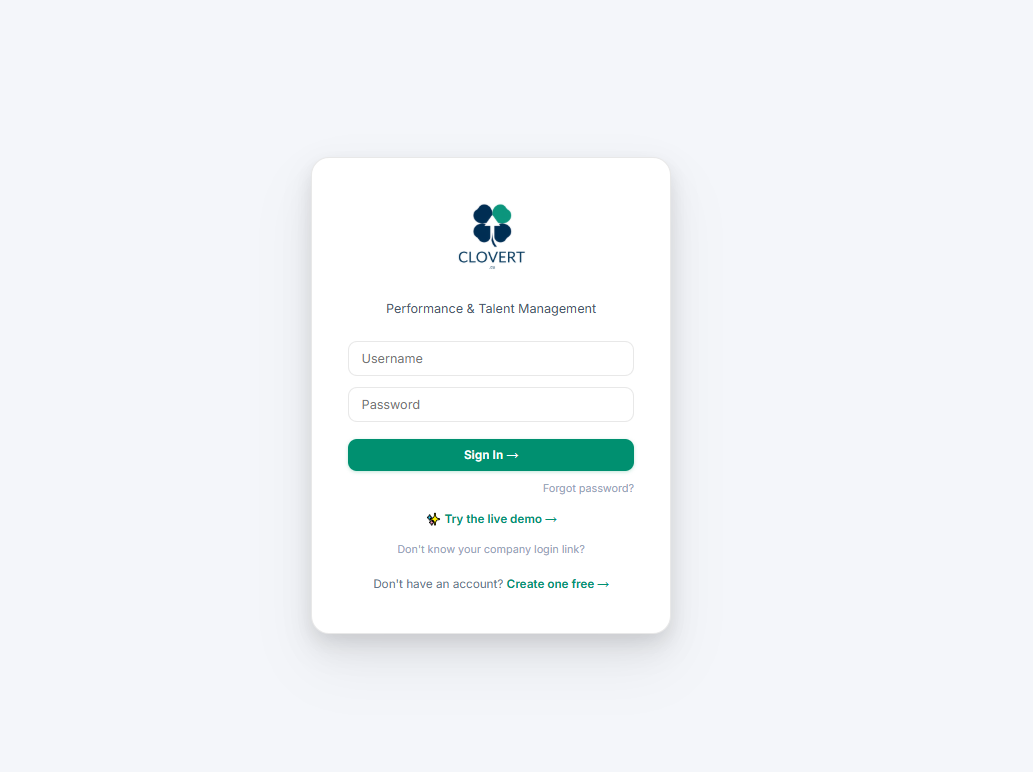
Everyone reaches Clovert through the same sign-in screen. Each company has its own login link, but the generic page works too.
Enter your username and password. If you don't know your company's login link, there's a helper for that. New companies can create an account, and anyone can try the live demo to explore Clovert before committing.
Creating a company account
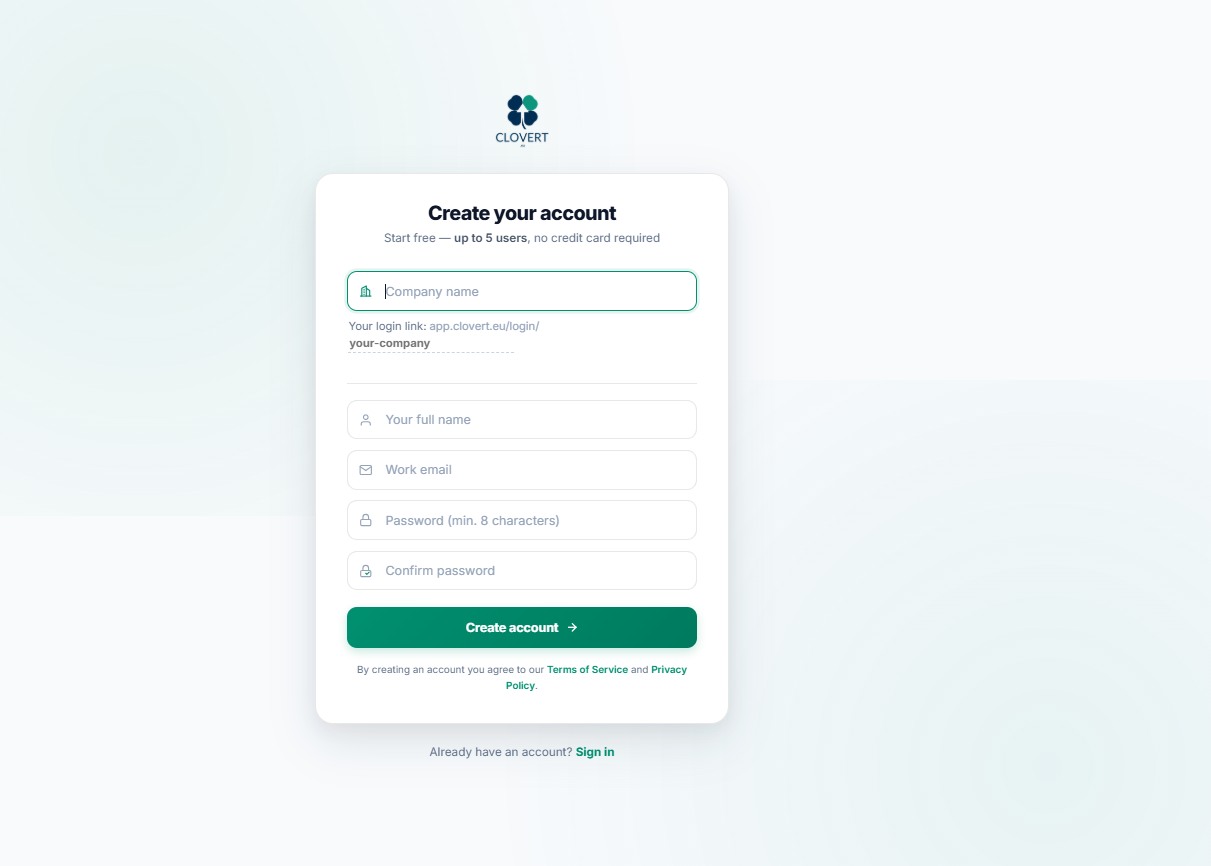
Setting up a new company takes under a minute. The Starter plan is free for up to 5 employees, with no credit card required.
Enter your company name and Clovert generates your login link from it (for example, app.clovert.eu/login/your-company) — you'll see it preview live as you type. Add your name, work email, and a password. That's it.
The manager's guide
As a manager, your home is the Manager Dashboard. Your job in Clovert is mostly to evaluate your team, develop them, and keep the cycle moving. This section walks every screen you'll use.
Manager access comes from being assigned a team — not from a separate login. You'll also have your own employee screens (self-review, your goals, your IDP), since managers are reviewed too.
Manager Dashboard
One screen showing where each review stands, how your team plots on the 9-Box, and who needs your attention this week.
The stepper at the top tracks the cycle in four phases: Self-Review → Reviews → Calibration → Completed. The stat cards summarise your team size, reviews completed, and average performance and potential. The team list shows each member with a status dot — green is submitted, amber is draft, grey is not started — and the live 9-Box plots everyone who's been reviewed.
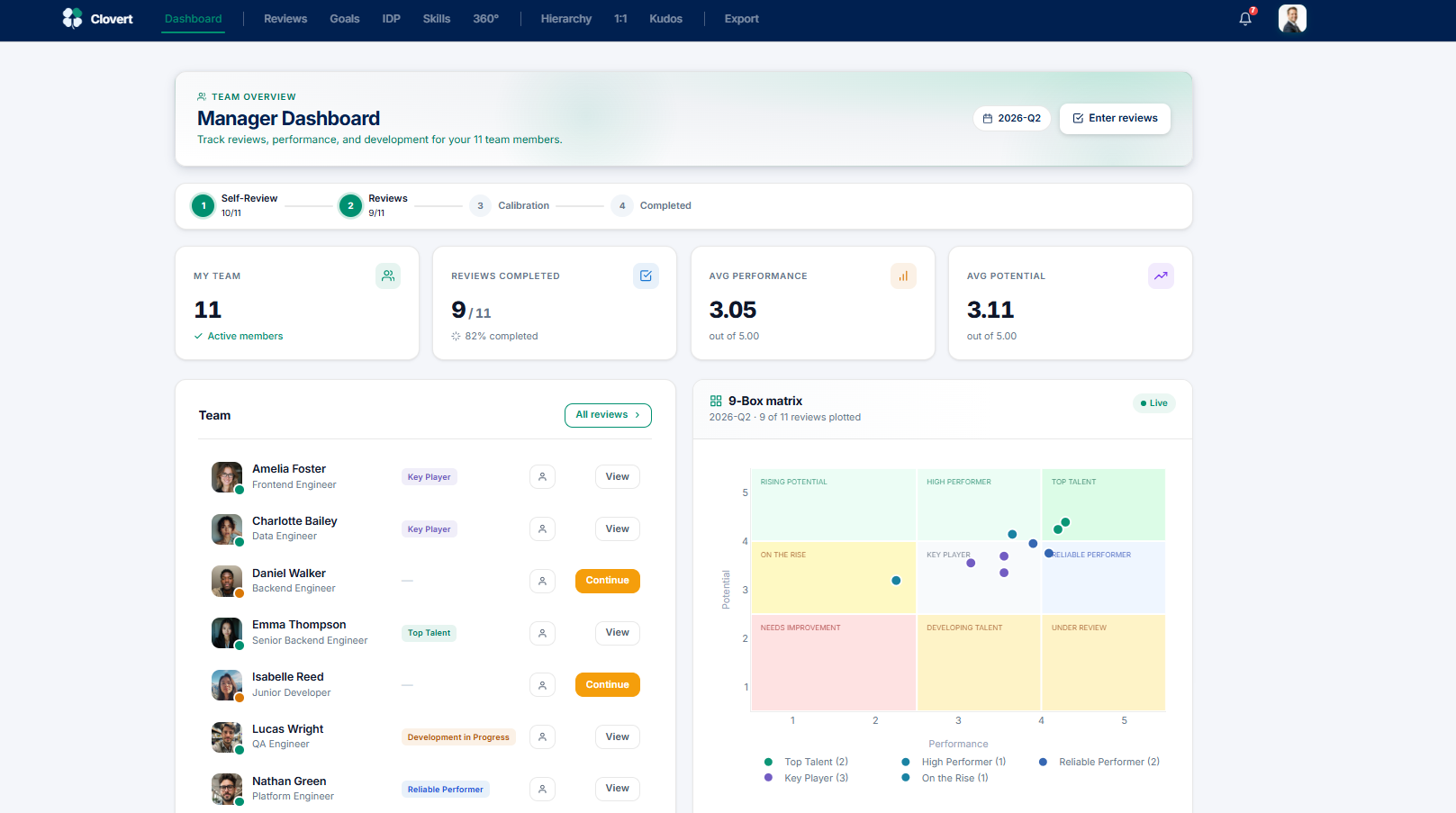
What to do here
- Check the stepper to see which phase the cycle is in.
- Scan the team list for amber (draft) and grey (not started) dots — those need your action.
- Click Continue on anyone in draft to finish their review, or View to open a completed one.
- Watch the 9-Box fill in live as you submit each review.
Reviews
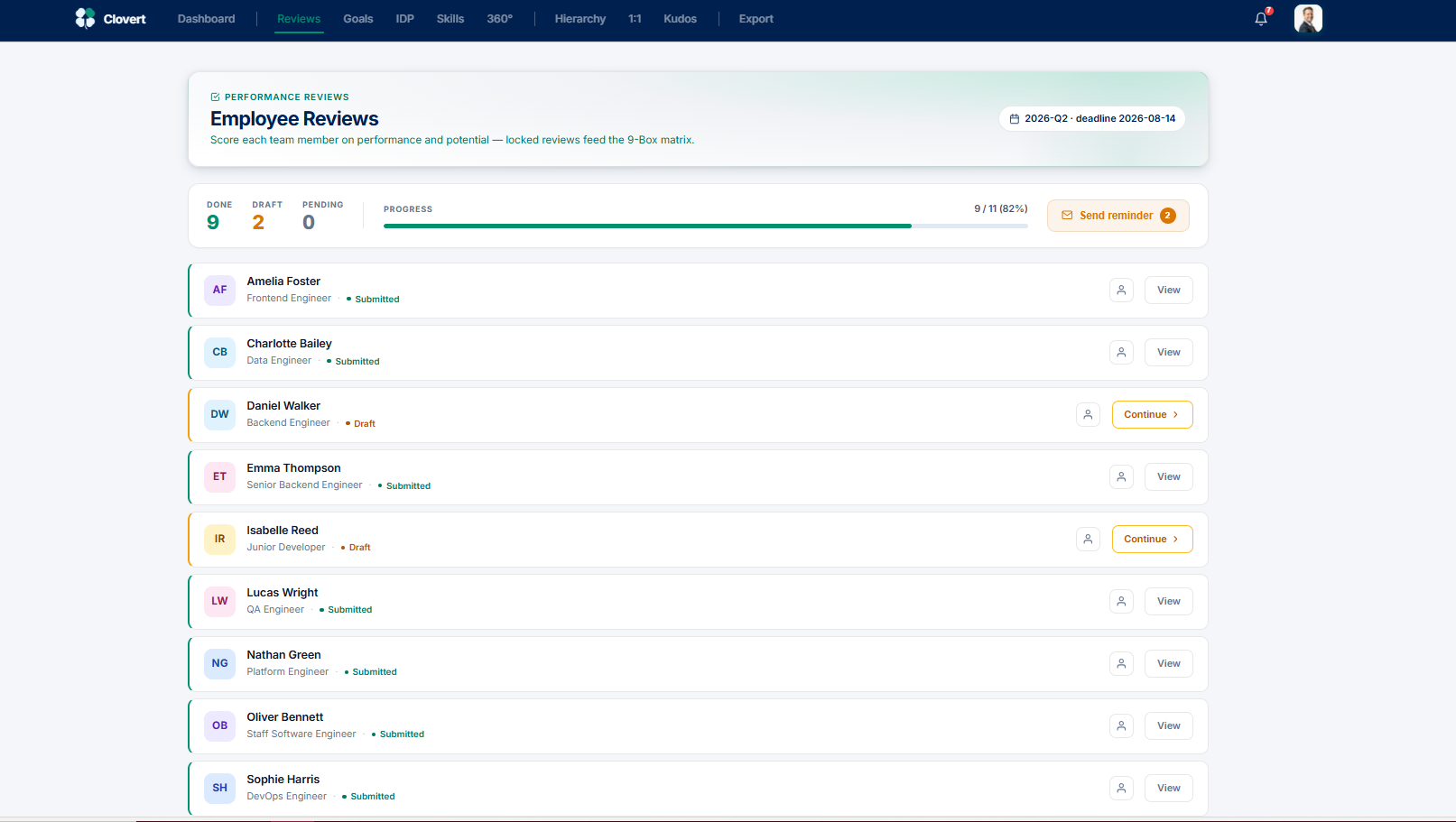
The list of every review you owe this cycle, with progress at a glance. Locked reviews feed the 9-Box.
The counters show Done, Draft, and Pending, with a progress bar. Each team member is a row with their status. Send reminder nudges anyone who still owes you input upstream. Click Continue on a draft or View on a submitted review.
The review form
Where you actually score someone. Two columns — Performance (past results) and Potential (future growth) — each with rated dimensions on a 1–5 scale.
Performance covers things like KPI & Goals, Quality of Work, Expertise, Ownership, and Collaboration. Potential covers Learning Agility, Influence, Strategic Thinking, Ambition, and Resilience. Each slider runs from "Needs improvement" to "Exceptional", and the average for each column is shown at the top.
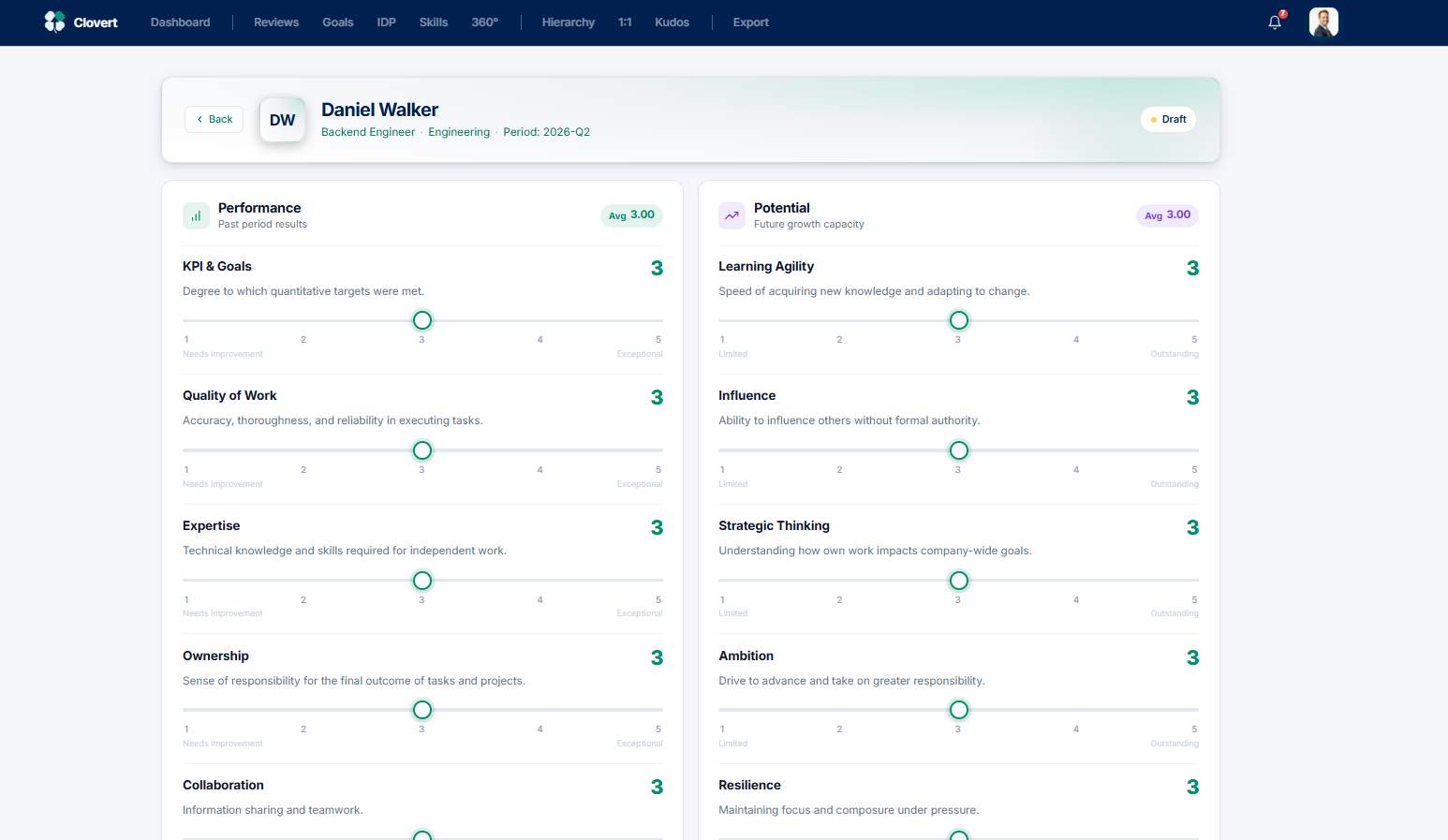
- Set each slider to the score that reflects the period's evidence.
- Add a comment with concrete examples and one development action.
- Choose Save Draft to return later, or Submit & Lock when ready.
Goals
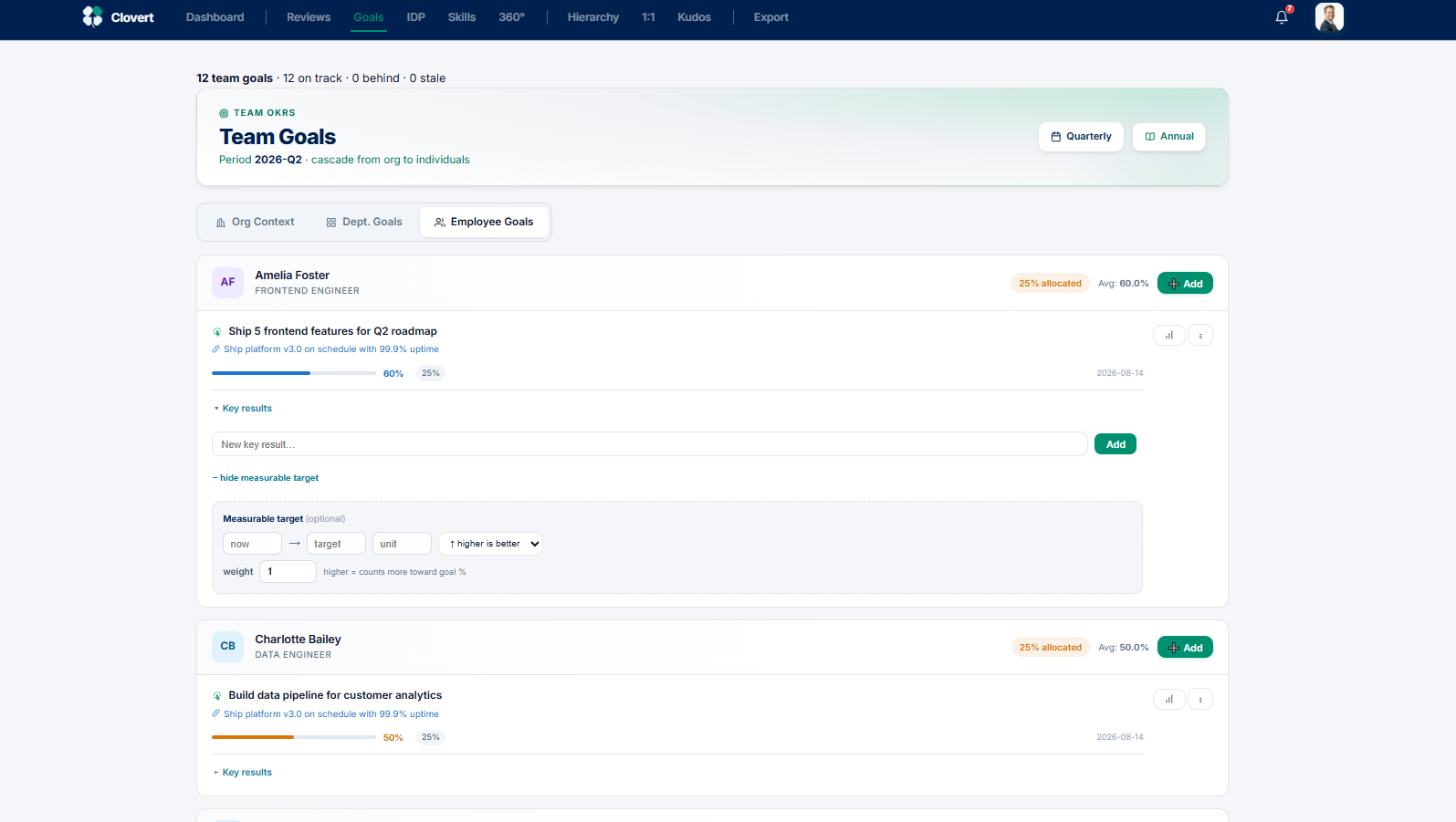
Your team's goals, cascading from org direction down to individuals. Approve, align, and track progress with KPIs.
Toggle between Org Context, Department Goals, and Employee Goals. Each employee goal shows its allocation weight, current progress, deadline, and a link to the parent org goal it supports. You can add key results and measurable targets (now → target, with a "higher is better" direction and a weight).
Development Plans (IDP)
Your team's development plans on the 70-20-10 model. See who has a plan, who still needs one, and build them out.
The progress ring shows how many plans you've created (for example, 10/11). Each team member is a row showing their career goal and plan status — Active, or "Not created" with a Create button. Click Edit to open and build a plan.
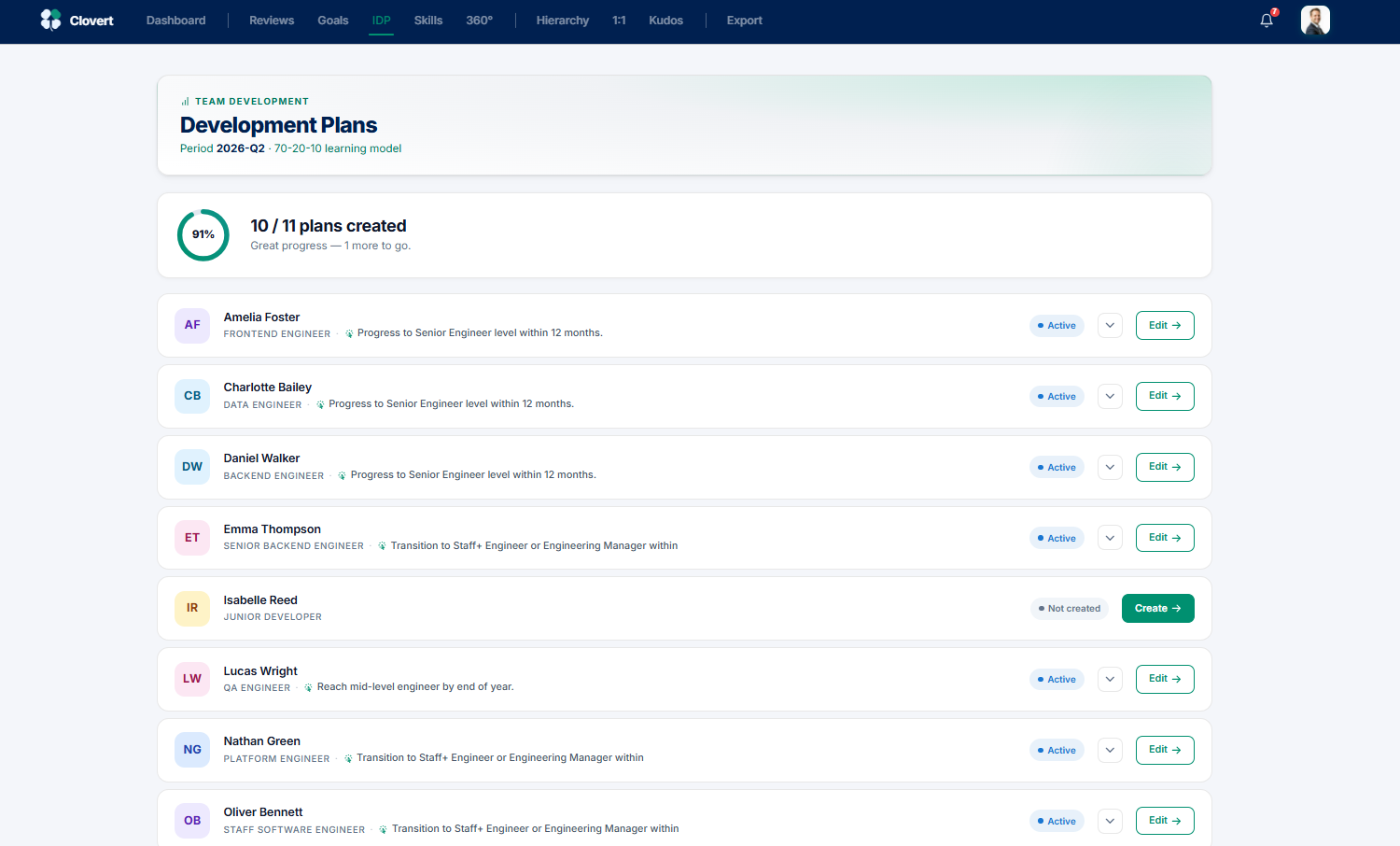
Building a plan
The plan editor opens with the career goal, key strengths, and development areas at the top, then three bands — Learning by doing (70%), Learning from others (20%), and Formal education (10%). Each band takes rows of what to develop, a concrete action, a deadline, and evidence of completion.
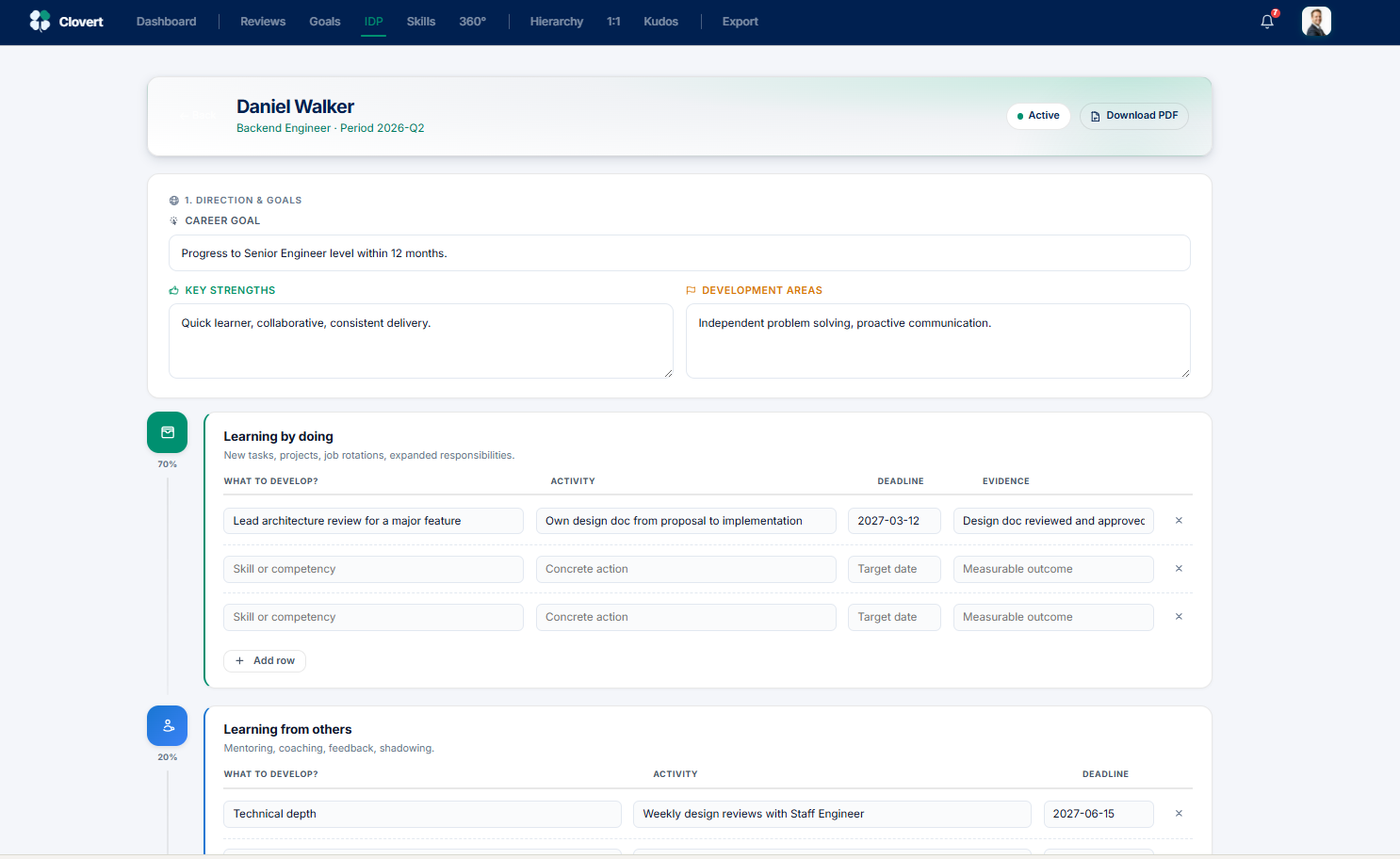
- Set the career goal and fill in strengths and development areas.
- Add rows to each band — what to develop, the action, a deadline, and evidence.
- Use Add row for more actions; Download PDF to share the plan offline.
Skill Matrix
Your team's capabilities mapped on a 0–4 scale. Rate each person per skill, see your coverage, and turn gaps into development actions.
Each row is a team member, each column a skill. Cells are colour-graded from 0 (none) to 4 (teaches others), and changes save automatically. Empty or low cells are your exposure — the skills only one person can do.
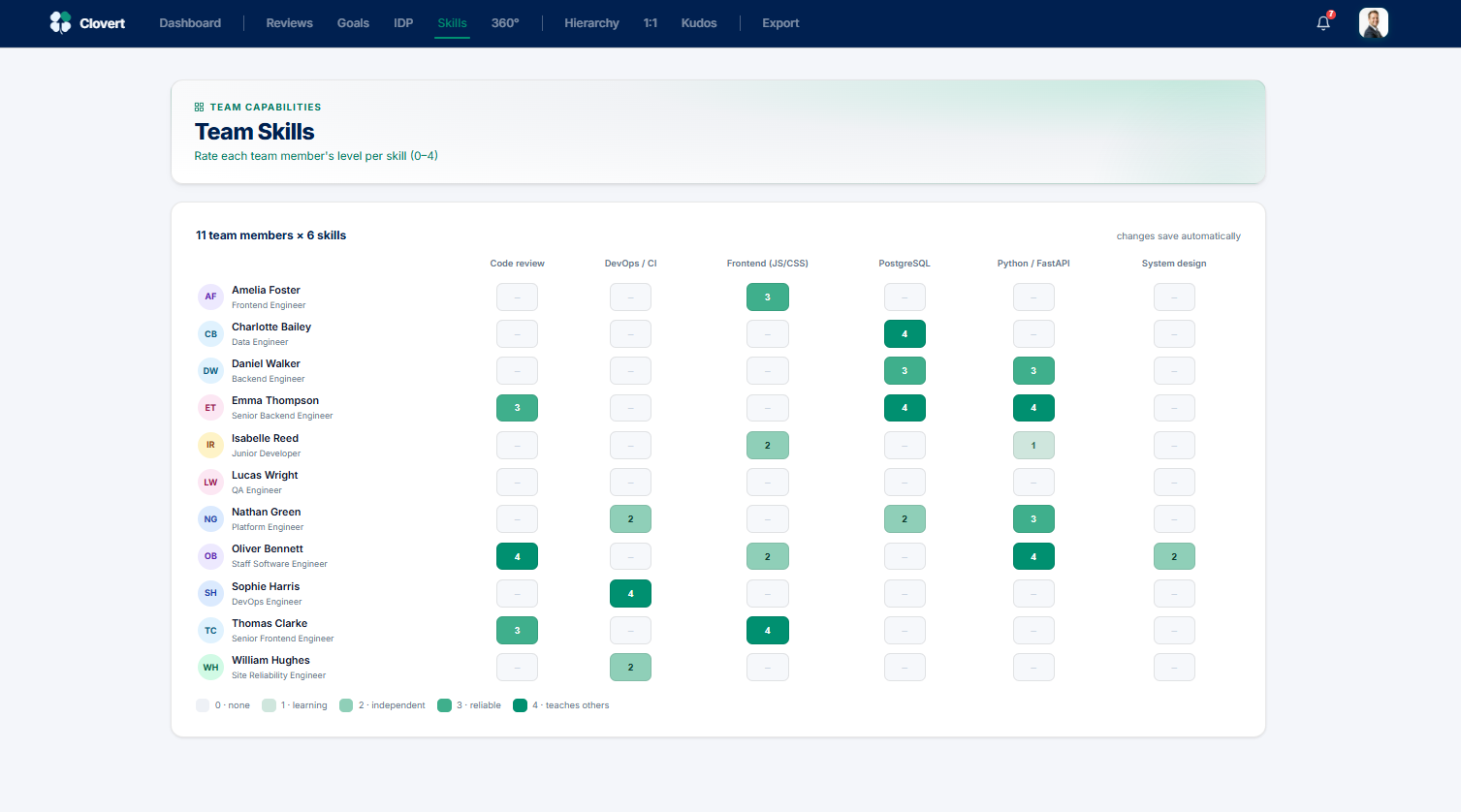
From a gap to a development action
This is Clovert's signature move. When you spot a low-rated skill, you can push it straight into that person's IDP — choosing which 70-20-10 band it belongs to.
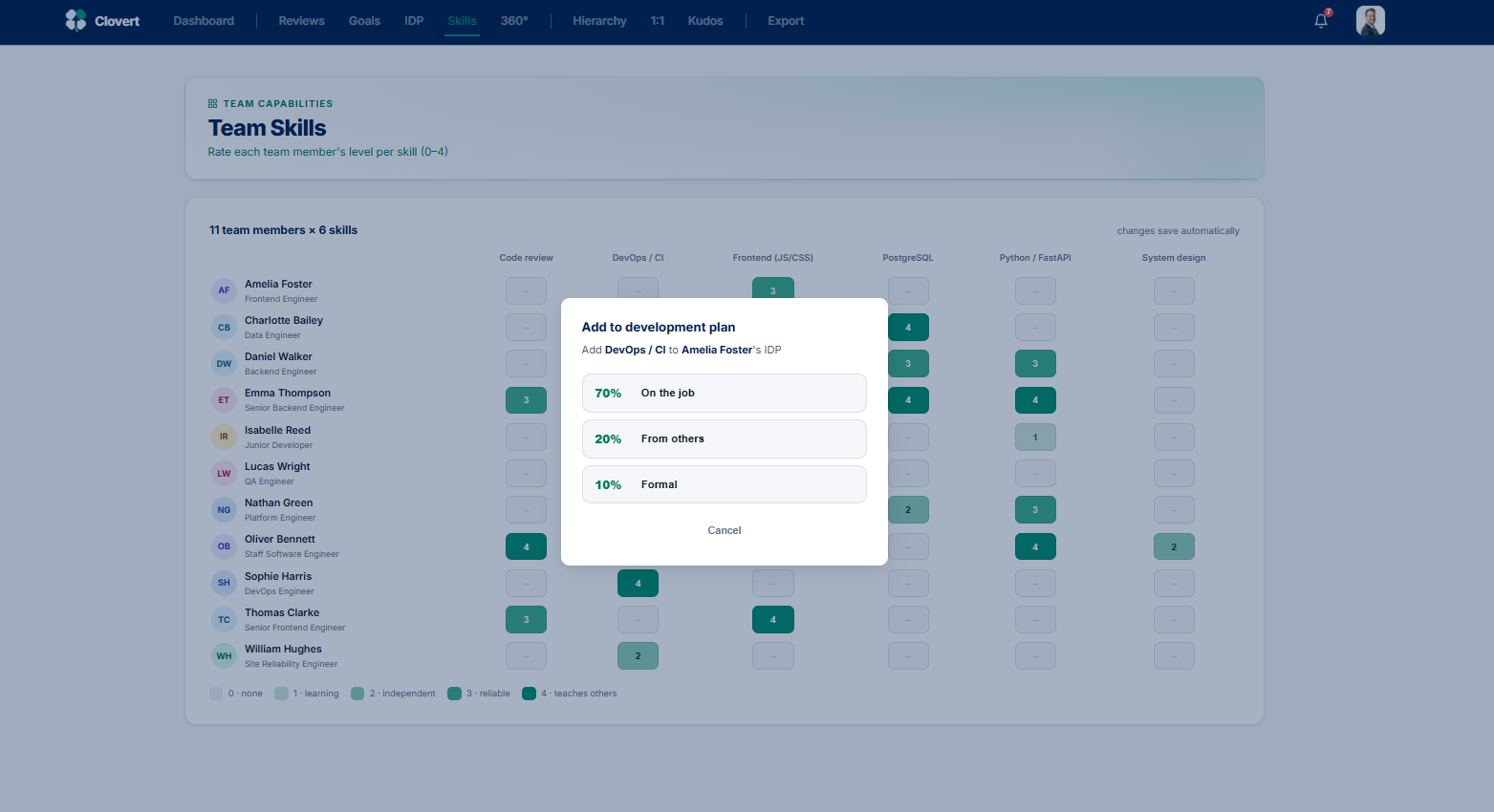
- Click a low cell to open the Add to development plan prompt.
- Choose the band — On the job (70%), From others (20%), or Formal (10%).
- The skill is added to that person's IDP as a development action.
360° Feedback
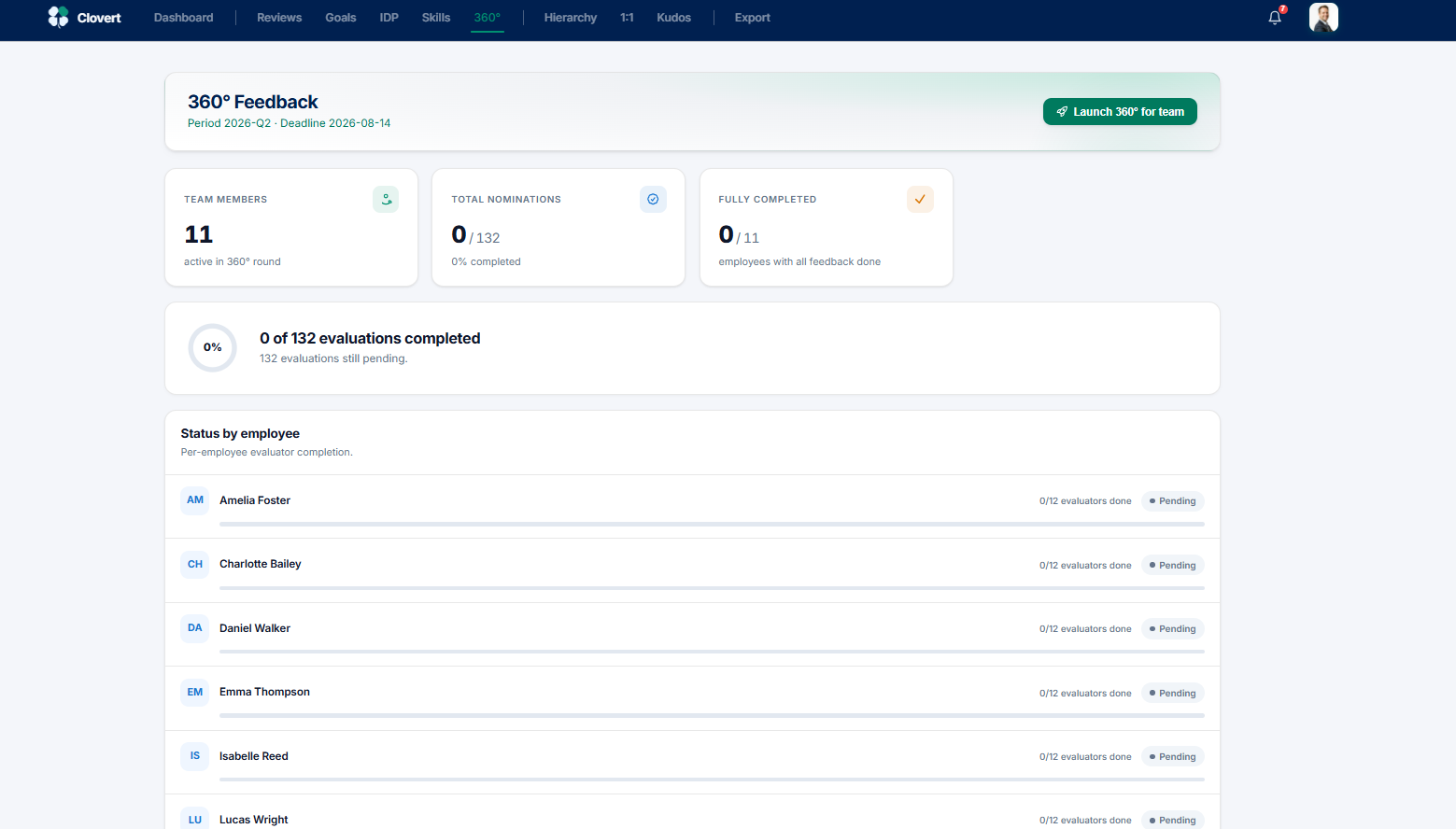
Launch and track a 360° round for your team. You see aggregate completion, never individual peer responses.
The stat cards show team members in the round, total nominations, and how many are fully completed. Launch 360° for team kicks off the round. The per-employee list tracks how many evaluators have responded for each person.
Hierarchy
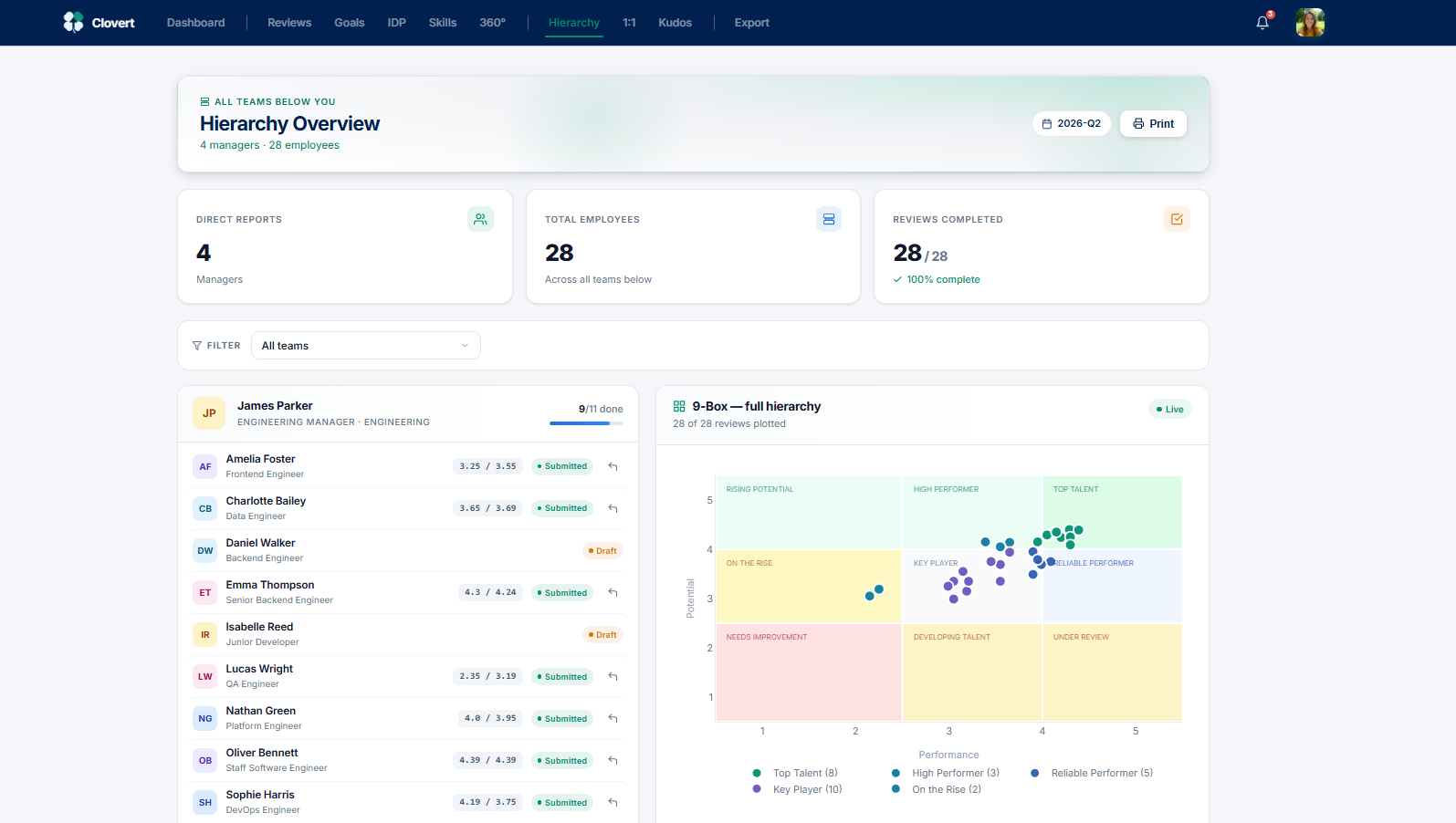
If you manage other managers, this view rolls up every team below you — all reviews, one 9-Box, and the ability to request revisions down the line.
The stat cards show your direct reports (managers), total employees across all teams below, and overall review completion. Each manager's team expands with individual scores and status. The full-hierarchy 9-Box plots everyone beneath you. Where a review needs changing, you can request a revision.
1:1 Notes
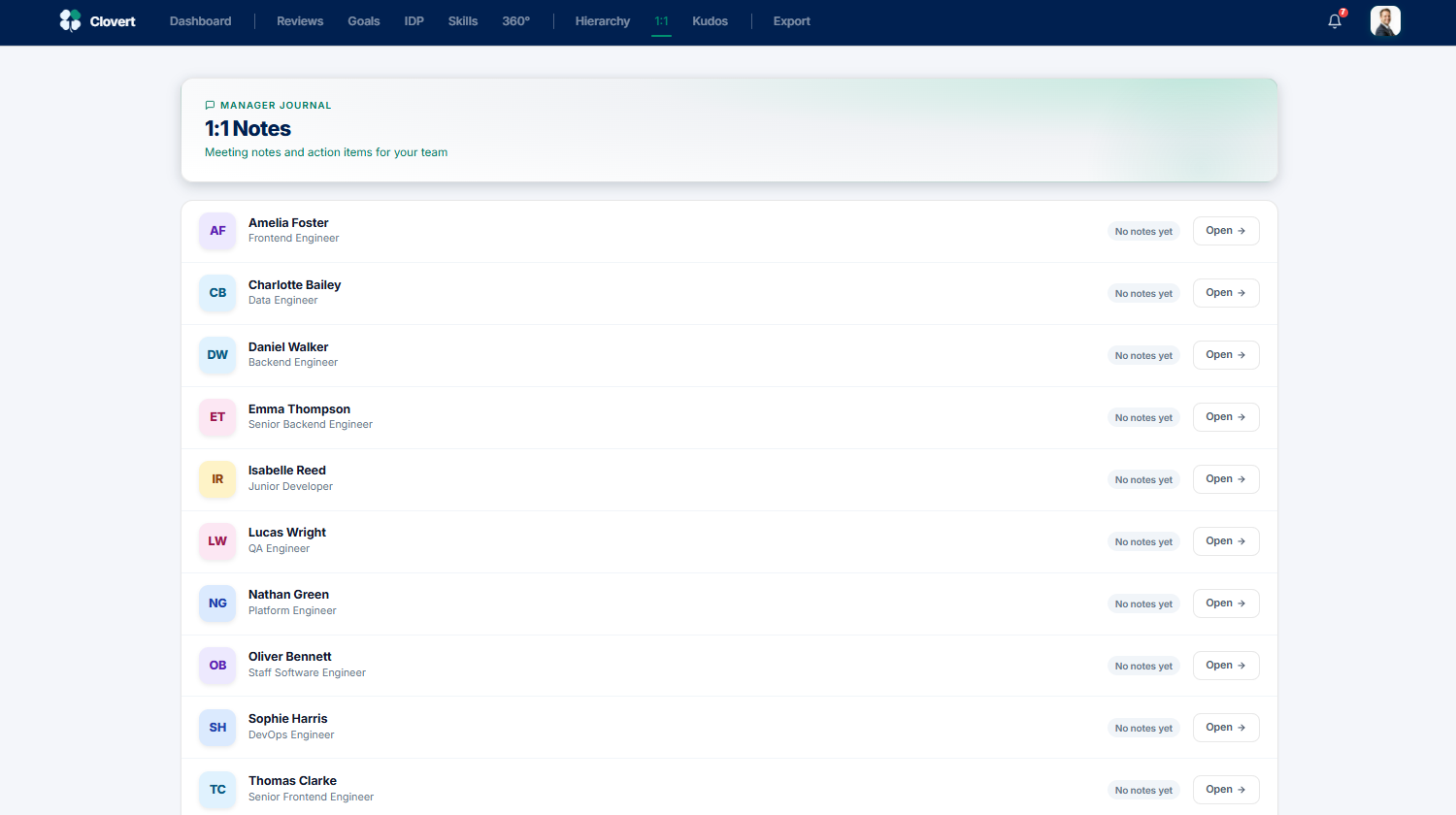
A private journal for your one-on-ones — meeting notes and action items per direct report. HR cannot see these.
Each team member is a row; click Open to view or add notes. This is your private space — a place for honest context and follow-ups that don't belong in a formal review.
Kudos
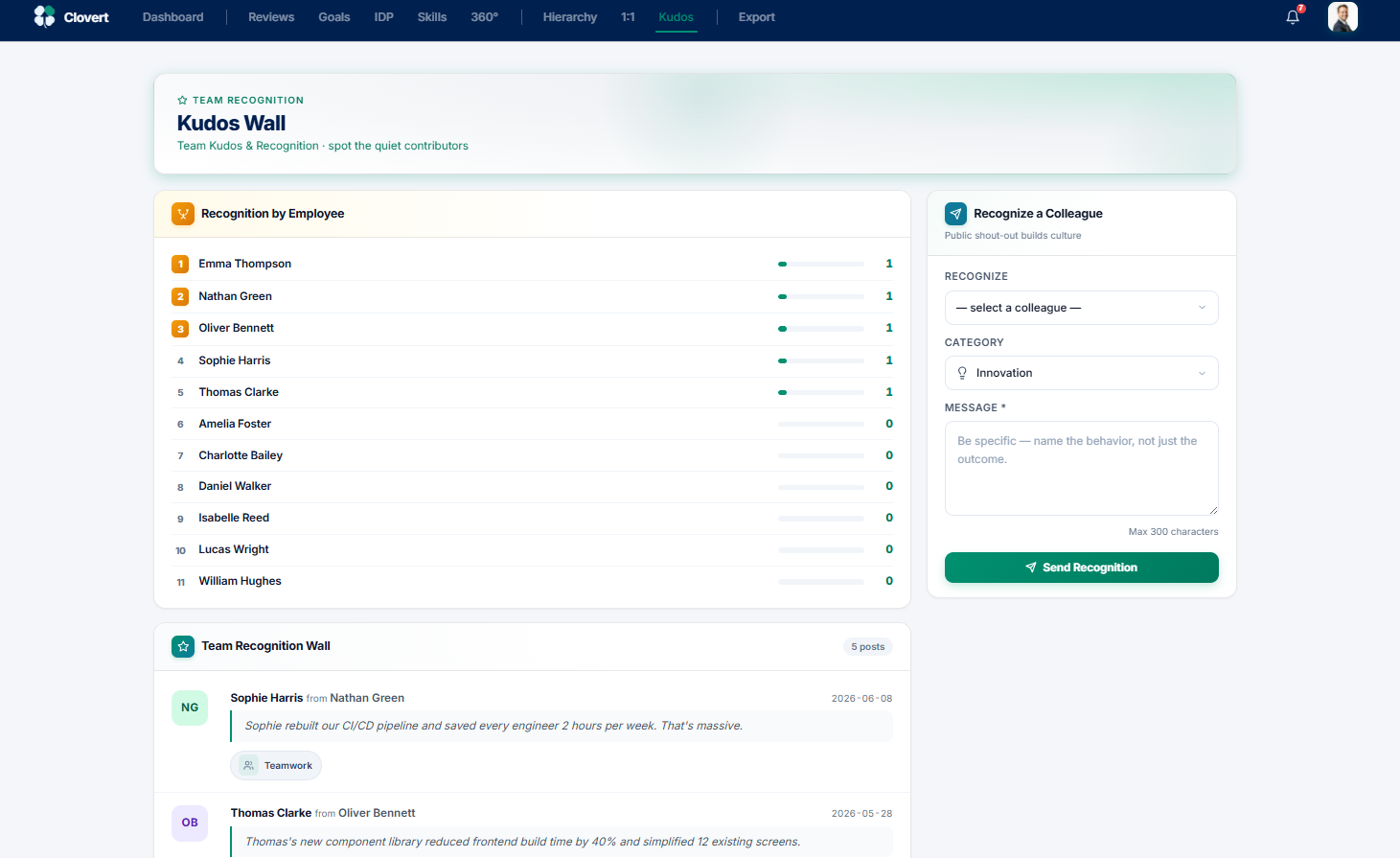
Public recognition for your team. Send a shout-out, and see who's been recognised — including the quiet contributors who might be missed.
The recognition leaderboard ranks team members by kudos received, which surfaces people doing great work who don't seek the spotlight. The form on the right lets you recognise a colleague: pick the person, a category, and write a specific message. The wall below shows recent recognitions.
The employee's guide
For employees, Clovert is about reflecting on your work, setting direction, and recognising peers. Most of your time will be during an active review cycle — typically 30 to 60 minutes per quarter.
My Profile (Dashboard)
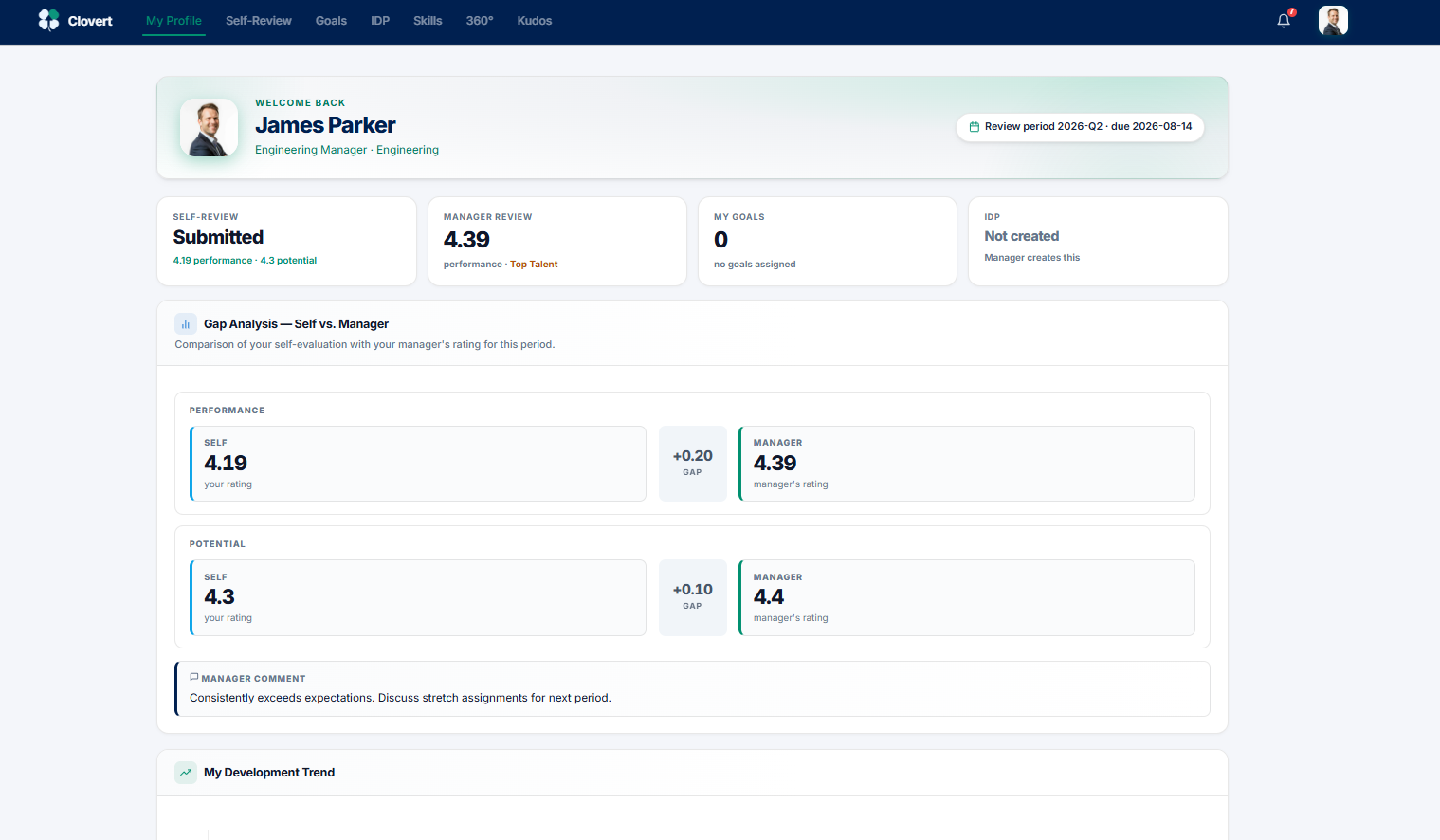
Your home screen. It shows where you are in the current cycle, your scores, and the gap between how you rated yourself and how your manager rated you.
The stat cards summarise your self-review status, your manager's review, your goals, and your IDP. The Gap Analysis compares your self-rating to your manager's, side by side, for both performance and potential — a useful prompt for your next 1:1. Your development trend across periods sits below.
Self-Review
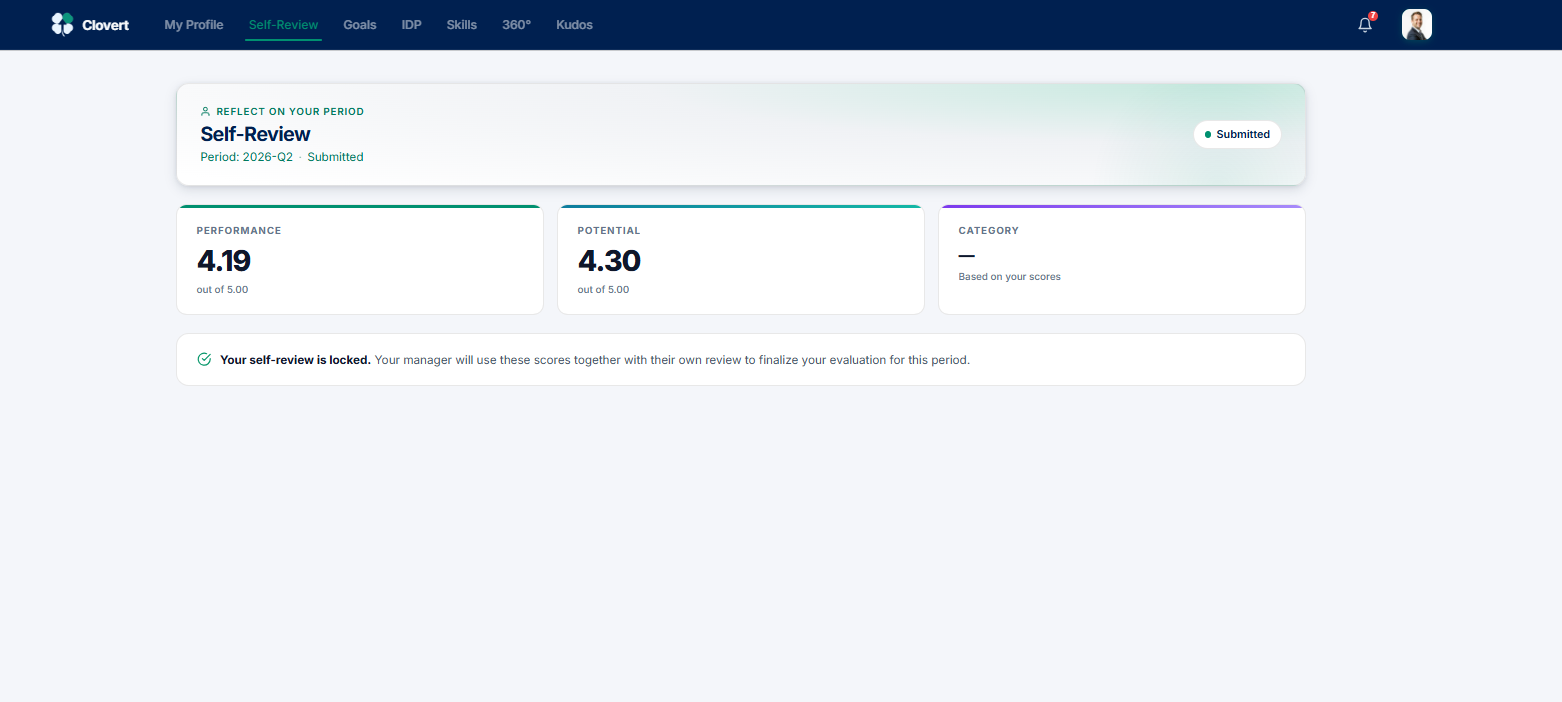
Rate yourself across the same dimensions your manager uses. Your honest assessment is half of the conversation.
You score yourself on performance and potential, with the same sliders your manager sees. Once submitted, your self-review locks — your manager combines it with their own rating to finalise your evaluation. The screen shows your submitted scores and confirms it's locked.
My Skills
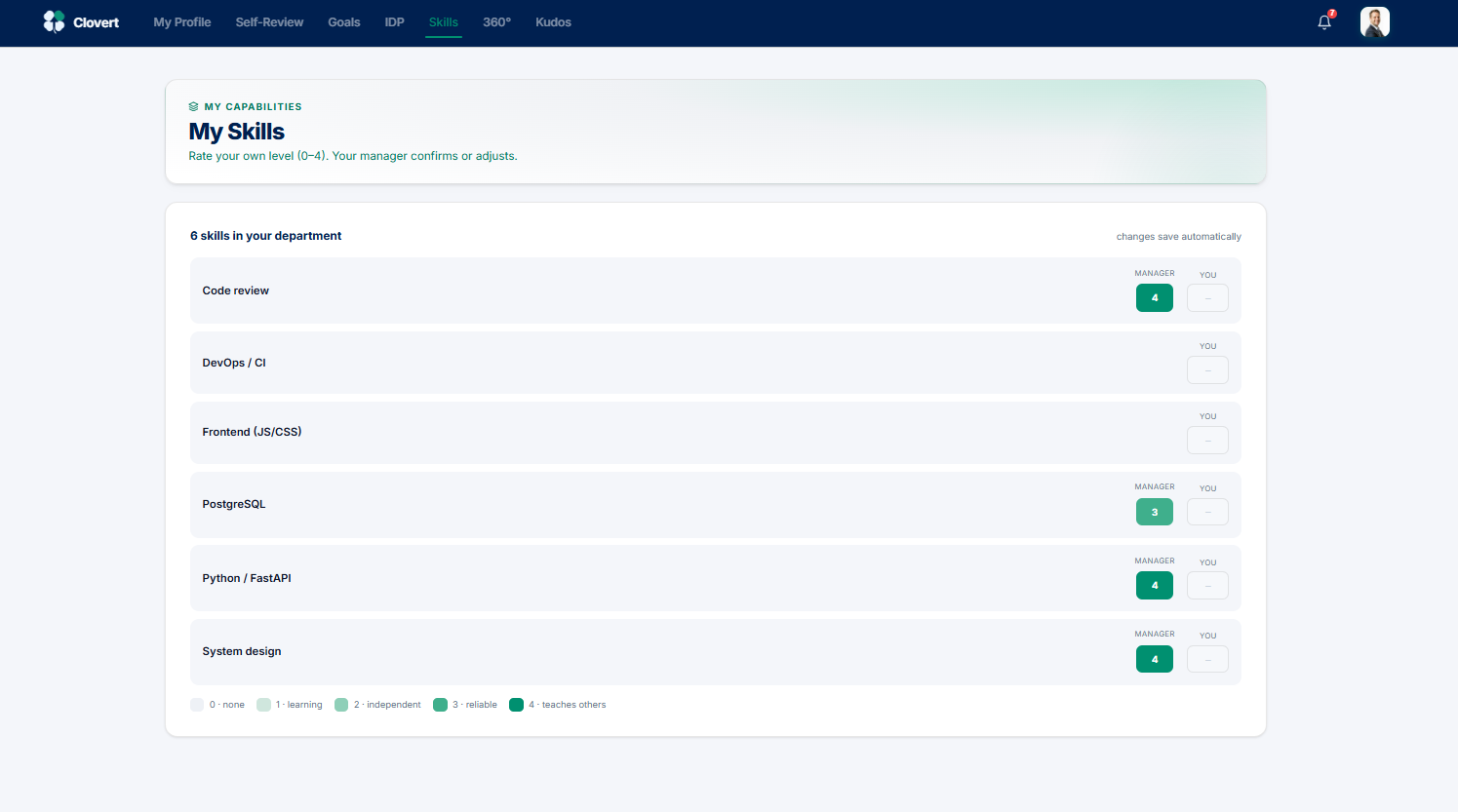
Rate your own level on each skill in your department. Your manager confirms or adjusts — so it's a starting point for a conversation, not a final word.
Each skill in your department is a row, on the same 0–4 scale (0 none → 4 teaches others). You enter your own rating; where your manager has rated you, you'll see theirs alongside. Changes save automatically.
360° Feedback
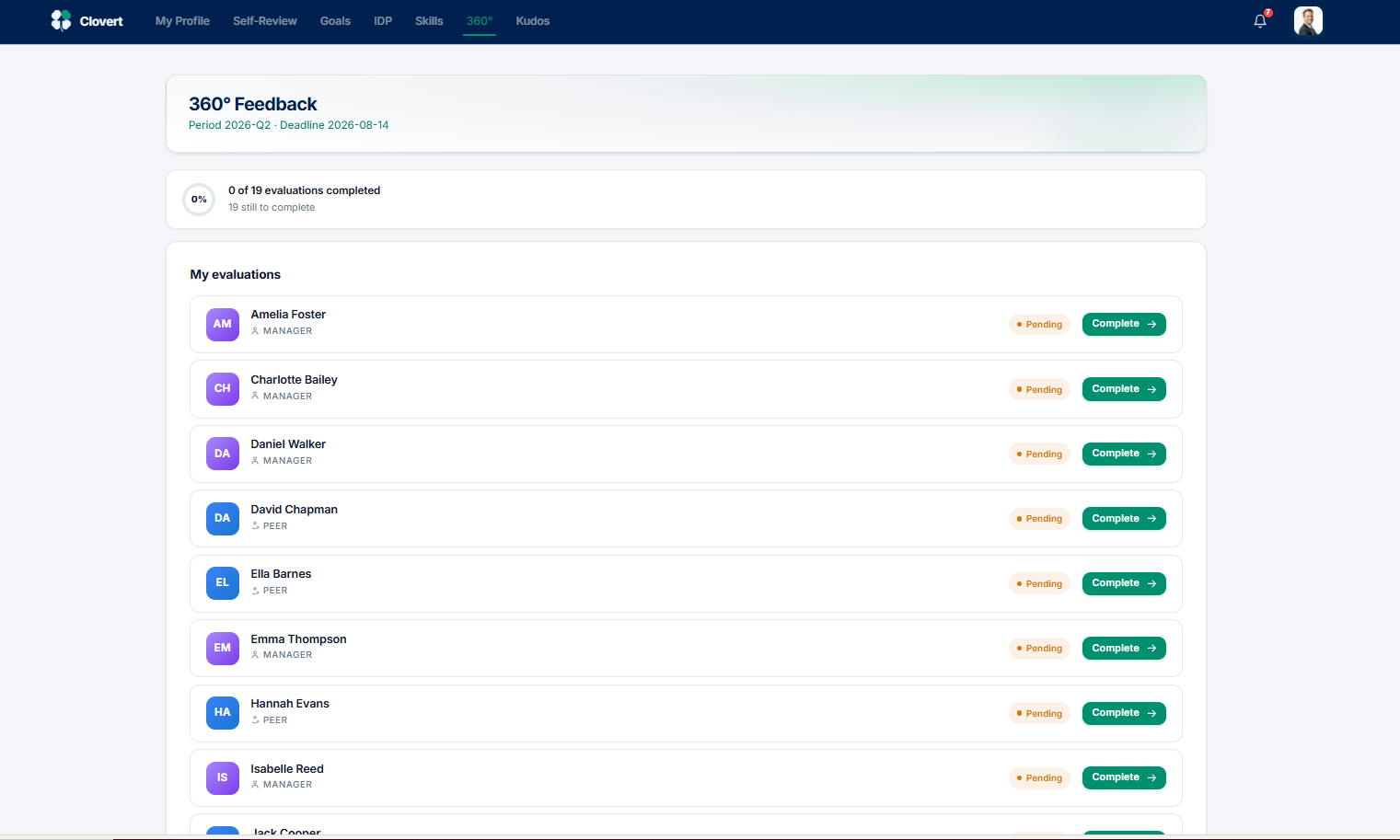
When you're nominated to give feedback on a colleague, this is where you do it. Your individual responses stay anonymous.
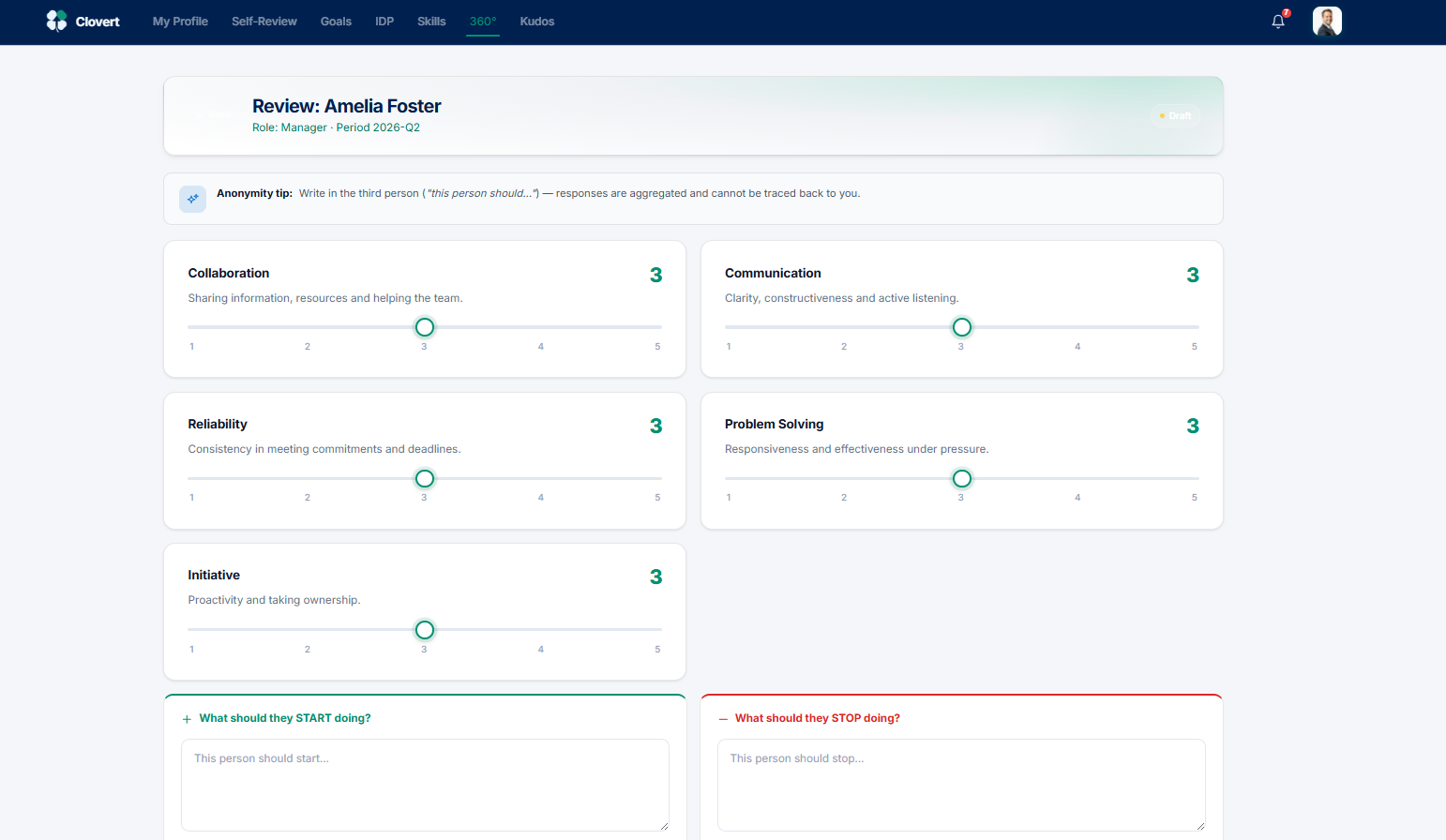
Your evaluations list shows everyone you've been asked to assess, with their relationship to you (Manager or Peer) and a status. Click Complete to fill one in.
Giving feedback
The feedback form rates a few competencies (Collaboration, Communication, Reliability, Problem Solving, Initiative) on a 1–5 scale, plus open-text "what should they start doing?" and "what should they stop doing?". An anonymity tip reminds you to write in the third person, since responses are aggregated and can't be traced back to you.
Frequently asked questions
Why do the employee counts differ between screens?
Each screen counts something slightly different — total headcount, active employees, evaluations in scope, or submitted reviews. People on leave or recently departed account for most of the difference. It's expected, not a bug.
Can the same person be HR, a manager, and an employee?
Yes. The access role (Employee / HR / SuperAdmin) controls what the platform lets someone do. Manager status is separate — it comes from the Is Manager flag in the Directory and simply means they have direct reports to review. Everyone, including HR and managers, has their own employee features (self-review, goals, IDP).
Where is our data stored?
All Clovert data is stored on servers within the European Union, encrypted at rest and in transit. Each company's data is isolated at the application layer — every database query is scoped to your company and covered by automated tests — so one company cannot access another's.
What happens if a manager forgets to submit a review?
You'll see who's behind on the Dashboard and in Reviews. Use Remind Managers to nudge them. If the deadline passes, you can either close the period (locking missing reviews as incomplete) or extend the deadline from the Periods screen.
Can a submitted review be reopened?
Yes. HR — or a senior manager who manages other managers — can use Request Revision to return a submitted review to draft, leaving a required comment explaining what needs changing. For exceptional cases, a SuperAdmin can unlock a review from the Admin console. Both actions are recorded.
Are 1:1 notes visible to HR?
No. One-on-one notes are private between a manager and their direct report. HR cannot see them — this is deliberate, so managers have a private space for honest context that doesn't belong in a formal review.
What does the 9-Box actually measure?
Two axes: Performance (the average of the performance ratings) and Potential (the average of potential ratings). The grid divides into nine quadrants from "Needs Improvement" to "Top Talent". Categories are derived automatically from the scores, and you can override them during Calibration.
What's the difference between Goals and OKRs here?
Clovert uses one unified concept: cascading goals with KPIs, definable at the organisation, department, or individual level. This gives you OKR-style alignment without forcing a particular methodology.
How do I get help?
Email hello@clovert.eu — we typically respond within one business day.